
Ever found your battery drained after browsing? Chrome’s new energy-saving mode can help. Here’s how to enable the feature.

Add us to your preferred sources.

Although it is one of the most popular browsers, Chrome is also known for being a notorious resource hog, leading, among other things, to battery drain and considerable lag. To combat battery drain, Google has released a battery saver mode feature, which allows you to extend your device’s battery life. Here, we will cover what the feature does and how to enable it on your device and start benefiting from longer usage times.
What is Chrome’s Battery Saver Mode?
TheChrome Battery Savermode will allow you to get more out of your devices while using the Chrome browser. This is good news if you use Chrome as your sole or preferred browser. At the moment, Battery Saver mode is an experimental opt-in feature. This means it has not yet been rolled out to the public and hence is not enabled by default. By opting into try out experimental new features like Battery Saver mode, users help Google gather critical user feedback on Chrome flags.
What Do You Need to Enable Chrome’s Battery Saver Mode
To enable Chrome’s Battery Saver mode on your Windows, Mac, Linux, or Chromebook devices, you must be running Chrome 108 or newer. Chrome 108 was released in November 2022. To check if your Chrome browser is up-to-date, simply launch Chrome, click on the
three dots
> Settings
Settings
> About Chrome. Afterwards, your Chrome browser should update automatically.
How to Enable Chrome’s Battery Saver Mode
If your device meets the requirements, you will be able to start using the battery saver feature. Here’s how to enable it:
- Open Chrome, type
chrome://flags
and press Enter.
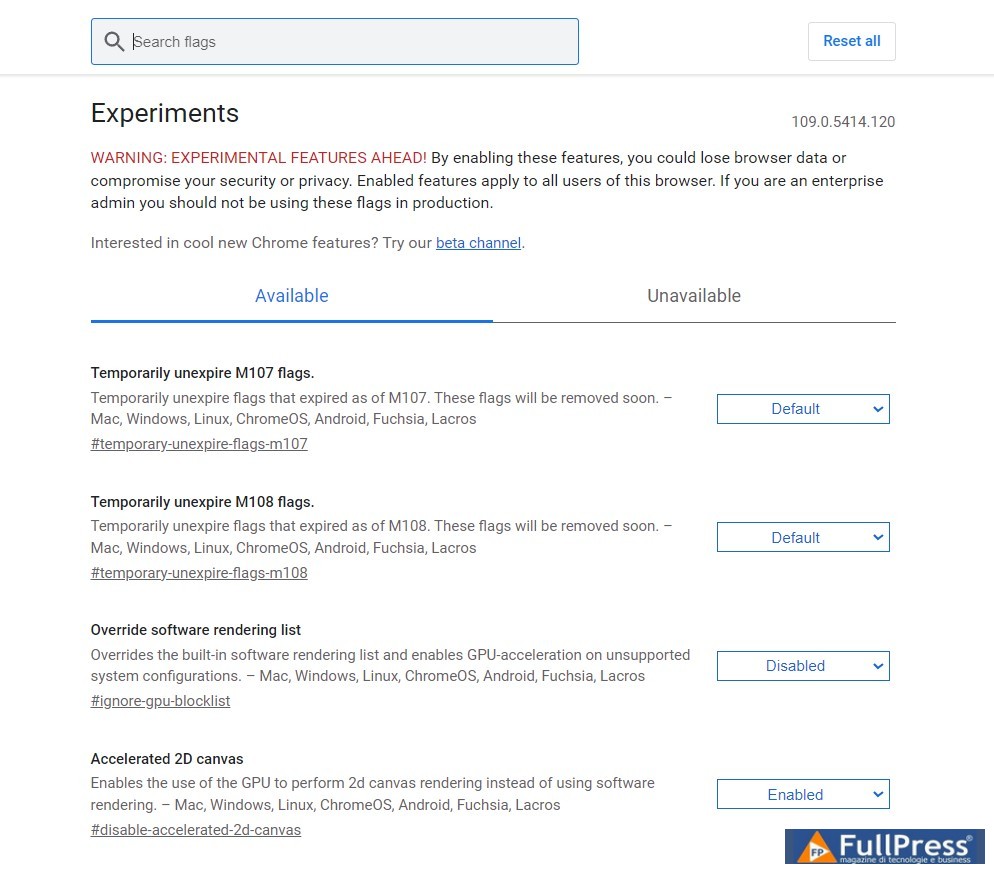
- Review the warning information at the top of the page before proceeding.
- Search for the words “battery”, “battery saver” or “battery saver mode” using the Search flags
box at the top of the page. - Navigate to the
Enable battery saver mode
setting and click on
Default. - Select
Enabled
from the dropdown menu.

- Click the buttonRestart in the bottom right corner for your changes to take effect.
If you use Chrome on multiple devices, you’ll need to manually enable this power-saving feature on each of those devices individually.
How to Change Chrome’s Power Saving Mode Settings
Upon restarting, your Chrome browser will sport a new feature Performance. You can use it to modify settings for power saving mode. Do this:
- Click the three dots at the top of Chrome.
- Scroll down through the menu options and click on Settings.
- You should now see the Performance tab between Privacy and security and Appearance.
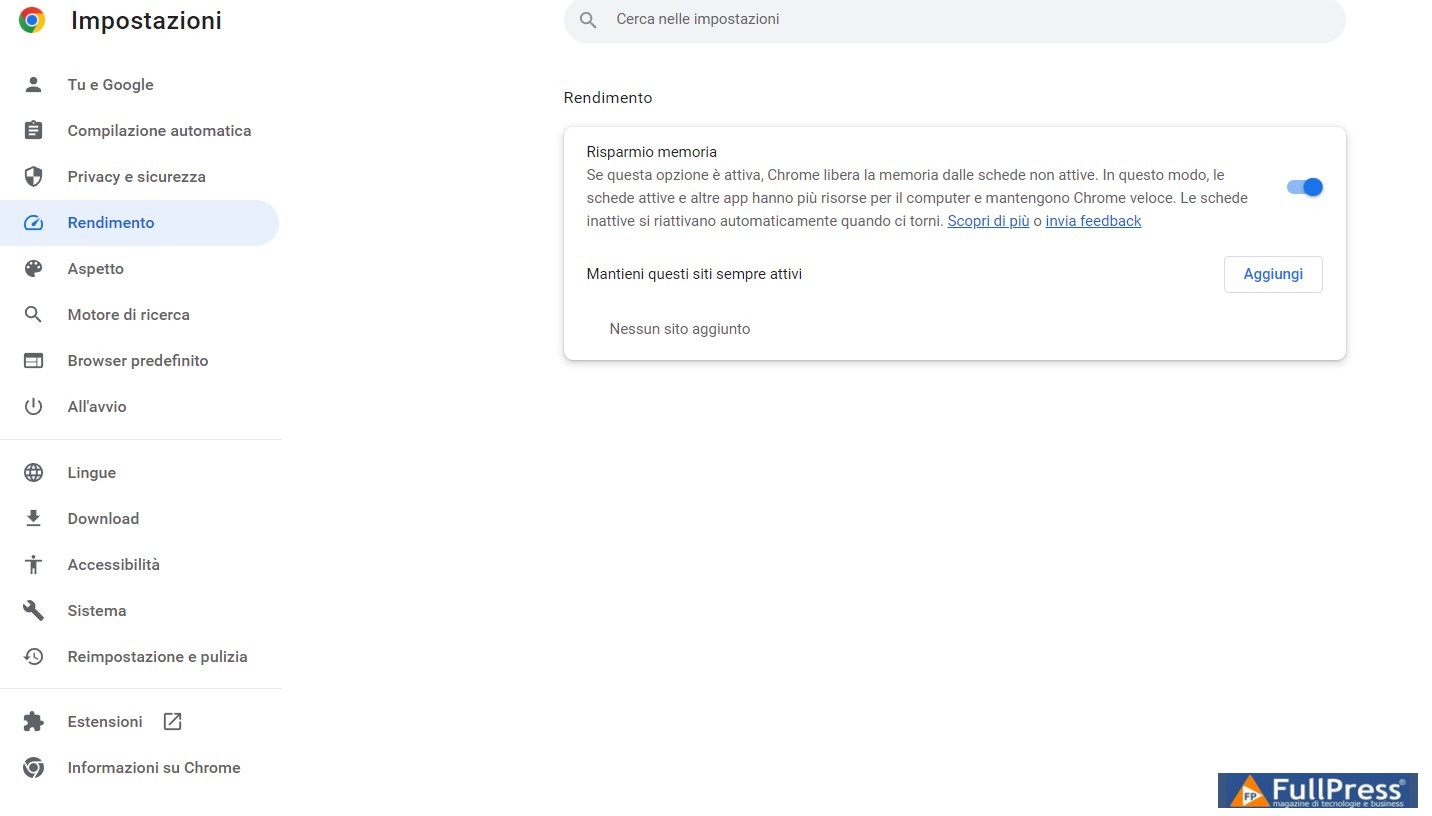
- Click on Performance. Note that the page will be blank if you are using an all-in-one desktop without a built-in backup battery.
- Under power options, select when you want the power saving mode to kick in. You can choose between when your battery is at 20% or lower or when you unplug your computer.
If for some reason you want to undo the changes you just made and exit Chrome’s Power Saving Mode, it’s easy to do. Simply go to Chrome’s address bar, type in chrome://flags/#battery-saver-mode-available, click the dropdown menu, and select Disabled. You can equally speed up Chrome by tweaking these flags.
Save Power While Using Chrome
While it’s unclear exactly how much power Chrome’s power saving mode will save, any improvement in battery usage is welcome, however small. With the new power saving feature, you can enjoy extended battery life while running Chrome. It’s another great reason to consider Chrome one of the best browser options.
Pubblicato in Google, Guides & Tutorials
Be the first to comment