
Learning how to enable macros is relatively easy, and in this article, we’ll show you how to enable macros in Excel, as they are disabled by default.
Add us to your preferred sources.

The versatility and enormous number of features of Microsoft Excel make it one of the most complex software programs to master.
What are macros in Excel?
An Excel macro is a small program created in Excel that allows you to automate daily tasks. It is a valuable tool in Excel that allows you to perform complex instructions with a simple command. Macros are a huge time saver – you can create macros that can do almost anything you want in Excel and other Microsoft Office software.
For example, macros allow you to insert company letterhead into an existing document in Word or add formatted tables to a spreadsheet in Excel, all with just one command. When you create a macro, you are recording mouse clicks and keystroke sequences. By using this feature, you can run a program to automate repetitive tasks.
The Benefits of Using Macros in Excel
Using macros in Excel provides the following benefits to users.
Saves You Time and Effort
This is perhaps the most obvious benefit of using macros in Excel. Since you can automate repetitive tasks, you can save time for yourself. You can then use the extra time at your disposal to handle other crucial tasks and responsibilities. But macro automation does more than just help you save time – it also helps you manage complex or tedious processes.
For example, if you have an Excel spreadsheet with data, you can create a macro that searches through all the data, compiles essential information, and sends a copy of it to an email address. Or imagine you usually create a monthly report for your accounting manager. Then, instead of spending time and energy sifting through data, formatting customer names, and identifying delinquent or overpaying customers, you can create a macro that does it all in minutes.
Helps You Reduce Errors
Spending long hours manually entering data into a spreadsheet can be grueling and tedious. Once you are exhausted and bored, it will not be long before you start making mistakes. When you use automated macros, you will be able to avoid or reduce errors that might occur due to human fatigue.
It Is Easy to Set Up Macros in Excel
You do not have to be a programming expert before you can use macros in Excel. This way, regardless of your profession, you can use macros to a reasonable extent by following the steps we provide in this guide.
The Danger of Using Macros in Excel
Although they were a default feature in Excel in the past, macros can cause some problems. For example, some people have used this powerful tool to create macro viruses, which can cause harmful outcomes. Several websites offer free macros that you can download to save time. While they are appealing, we strongly advise you to avoid them. If you are not a technical user or are unsure of what a macro will do, you should avoid downloading them or checking their contents. Because of these dangers, Microsoft disables macros by default. Therefore, while you can still use macros, you will need to enable them. With that in mind, let’s now look at how to enable macros in Excel.
How to Enable Macros in Excel
Enabling macros is one of the simplest things to do in Excel. Here’s how to do it.
- Click File and then click Options.
- This brings you to the Excel Options window. On this page, click Trust Center in the sidebar at the bottom left.
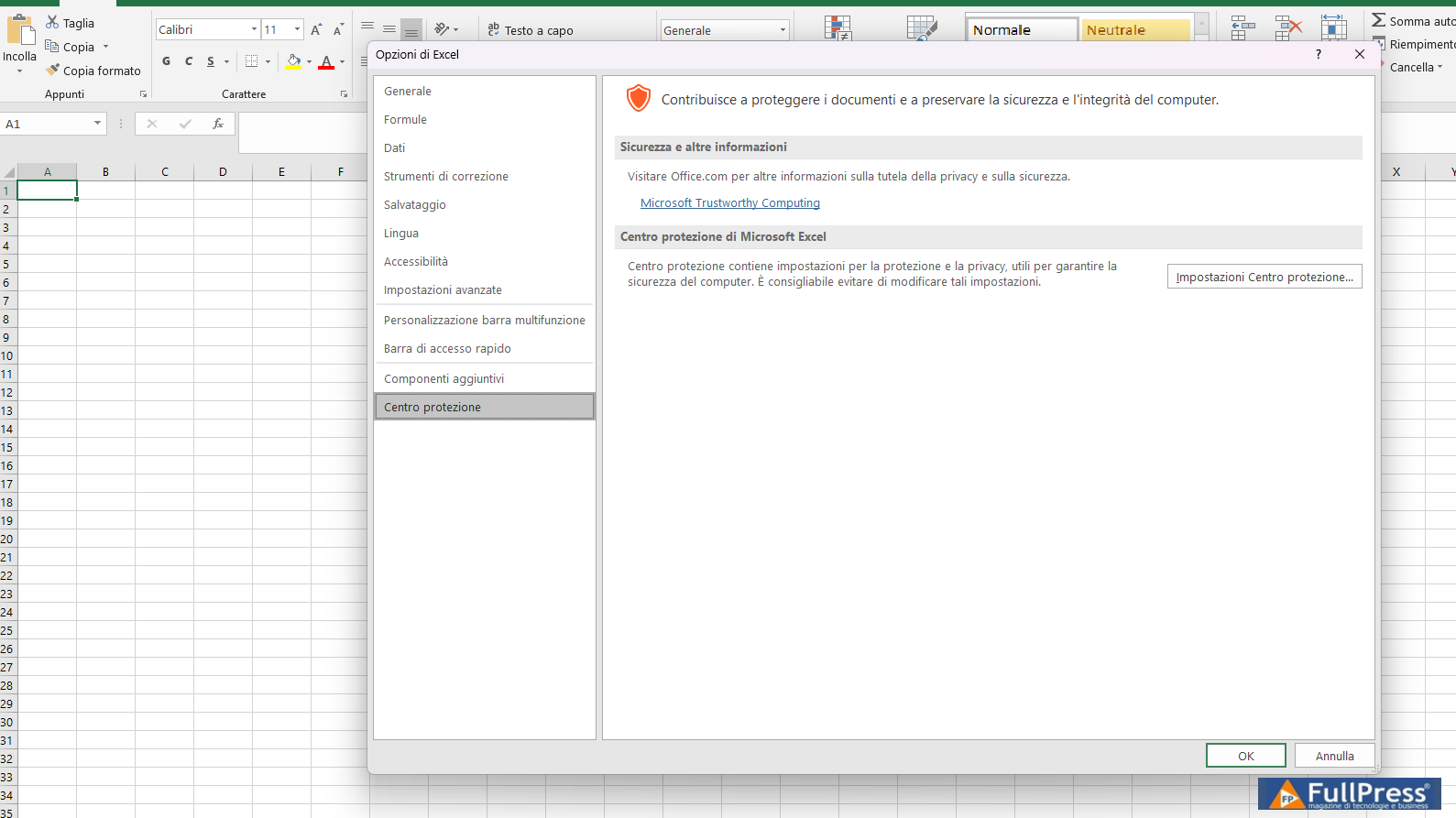
After clicking Trust Center, a new window opens. Click Protection Center Settings.
3. In the “Protection Center window, click on Macro Settings in the left sidebar.
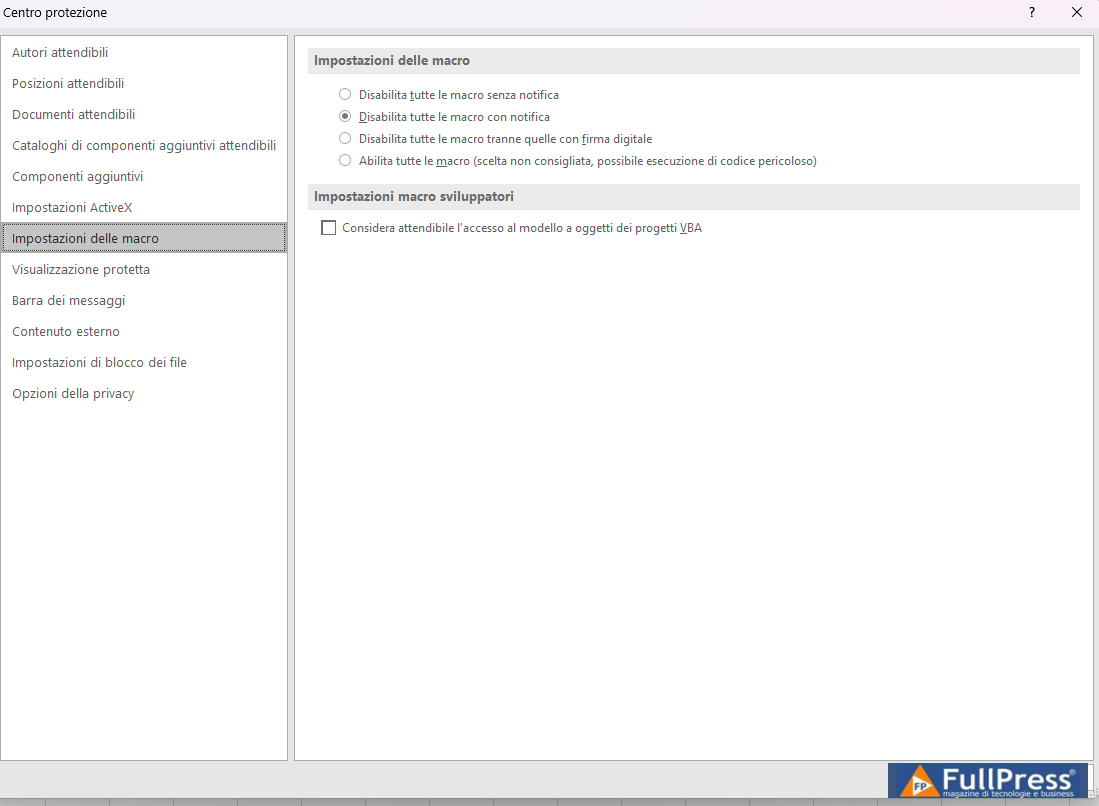
To enable macros, select the checkbox next to Enable all macros.
Then click OK at the bottom of the page to save your new settings. And with that, you’ve enabled macros in Excel. Keep in mind that by following the previous steps, you will ensure that all spreadsheets in Excel run macros.
You should only do this if you can handle the risk of macro viruses. What if you want to enable only one macro in Excel and not all macros? Then the next section will show you how.
How to Enable a Single Macro in an Excel File
You can easily enable the spreadsheet without going through hoops if the spreadsheet has a macro. Here’s how.
- Open the file that contains the macro.
- Due to Excel’s settings, macros are automatically disabled. If a spreadsheet with macros is opened, a yellow security warning message bar will appear, indicating that macros have been disabled.
- To enable macros, you just need to click Enable content.
How to Enable Macros in a Single Excel File
Since March 2023, Microsoft has changed the default behavior of Office applications to block macros in files downloaded from the internet. Therefore, when users open a file containing macros, they receive the security warning message.
However, you can enable macros by modifying the properties of the file that contains them. Just follow these steps:
- Go to the file location of the Excel file.
- Right-click and select Properties.
- Select the Unblock checkbox at the bottom of the General tab in Properties, then select OK.
You don’t have to be an accountant to know how to use Excel. The steps we’ve listed above will help beginners learn how to enable macros in Excel. Whether you want to work faster or improve your productivity, Excel has features like macros to help you.
Pubblicato in Excel
Be the first to comment