
In this beginner’s tutorial, you will discover how to create a basic table in Microsoft Word, with rows and columns, without any problems.

Add us to your preferred sources.

The ability of creating a table in Microsoft Word allows users to present page content in a column and/or row format. Many users associate a table with the “always so obvious” layout where borders are displayed.
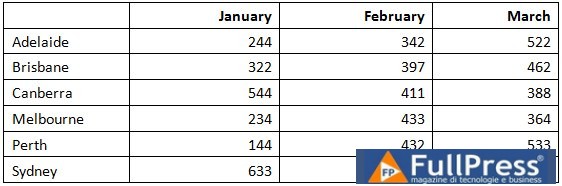
While this is a perfect way to use tables, tables can do so much more. Below is a perfect example of a basic table with borders displayed.
Think outside of the box and turn off the borders and you have an invisible way of positioning your content on the page.
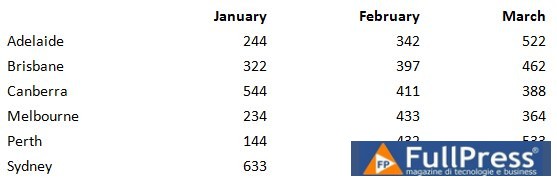
Table Terminology
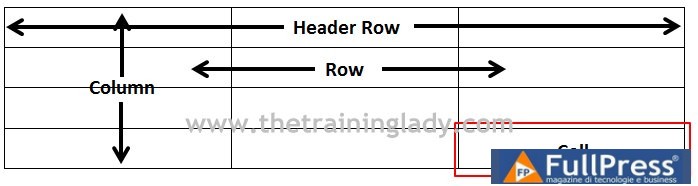
When working with tables, it is helpful to know the correct terminology. Below are four (4) common terms used when working with tables.
Navigating a Table
Moving around or navigating a table is very simple. You can use your mouse and click inside of each cell that you want to add content too, or if you prefer your keyboard, you can use the arrow keys to move up, down, left, or right, or the TAB key will move your cursor to the next cell.
If you place your mouse cursor in the last cell of the table and press theTAB key on your keyboard, a new row will be created.


How to Create a Table in Word
So, now that you have an idea about tables and what they can do, let’s take a look at how to create a table in Word.
- Open Microsoft Word
- You will now have a new blank document
- Press theEnter key a few times to put in a few blank rows
- Click on theInsert tab from the ribbon
- SelectTable from theTables
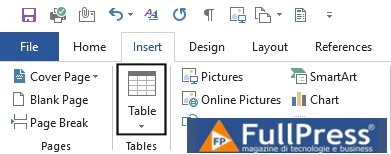
- groupThe Insert Table menu will appear that will allow you to select how many rows and columns you want to insert:
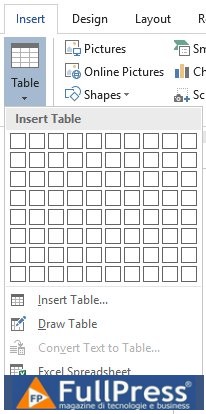
- Hover your mouse over the grid and you will see the grid light up to show how many rows and columns you will select and on the top of the grid it will also tell you how many you have selected
- Hover your mouse so that you have 3 rows and 3 columns
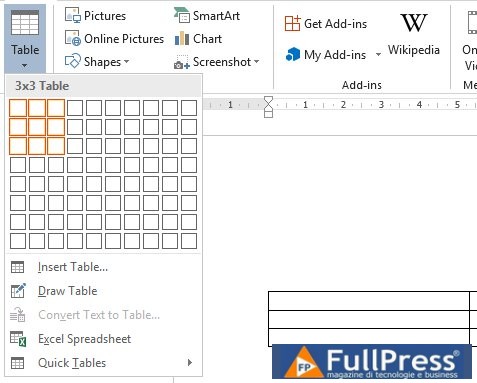
- Now take a look at your document, you will see a live preview of what your table will look like on the page, this is another way to verify that you are selecting the correct number of rows and columns.
- Left click this once and your table will now be committed to the page.
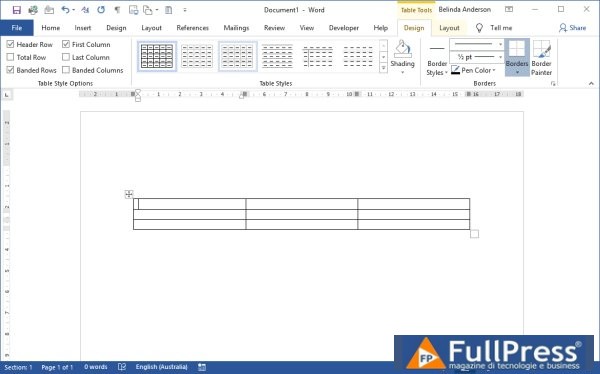
- Now you will see that there are 2 additional tabs available in the ribbon calledTable Tools > Design and Table Tools > Layout
- These two tabs are only visible when you have your mouse cursor within a table. I often find during training that people lose the Table Tools tabs and cannot get them back so it’s important to remember that they only appear when the object they relate to is selected.
Entering Text or Images
Once you have inserted a table into your document, it is time to add your content. You can add text or images in the same way that you would in a blank document. Click into the cell where you wish to add your text and type in your information.
The more information you add to each cell, the bigger the height of the cell will become. Remember that if you add information into a cell within a column and nothing into the next cell, the column that does not contain content will still grow to match the adjacent cells. The height of your rows, or indeed your entire table, will be the same as the tallest cell.

Be the first to comment