
Accidentally deleting important files can cause serious problems and moments of panic. Fortunately, when you delete a file in Windows, it is not immediately physically removed from the storage device. Even after emptying the Recycle Bin, the data often remains recoverable until it is overwritten by new information. This guide will show you several methods to recover files deleted from the Recycle Bin, from built-in Windows solutions to the use of specialized software.
Add us to your preferred sources.

Accidentally deleting important files can cause serious problems and moments of panic. Fortunately, when you delete a file in Windows, it is not immediately physically removed from the storage device. Even after emptying the Recycle Bin, the data often remains recoverable until it is overwritten by new information. This guide will show you several methods to recover files deleted from the Recycle Bin, from built-in Windows solutions to the use of specialized software.
Understanding how the Windows Recycle Bin works
The Windows Recycle Bin functions as a temporary safety net for deleted files. When you delete a file, the operating system does not physically remove it from the hard drive, but simply moves it to the Recycle Bin. This allows you to easily restore files deleted by mistake, at least until the Recycle Bin is emptied.
However, even after emptying the Recycle Bin, files are not completely removed from the disk. Windows simply marks the space occupied by these files as available to be overwritten. The data remains physically present until new information is saved in that space. This is why it is possible to recover files even after emptying the Recycle Bin.
It is important to act quickly when you realize you have deleted important files. The more time passes, the greater the chances that the data will be overwritten by new information. To maximize recovery chances, avoid using the computer or at least saving new files on the affected disk until you have recovered the lost data.
Recover files from a non-empty Recycle Bin
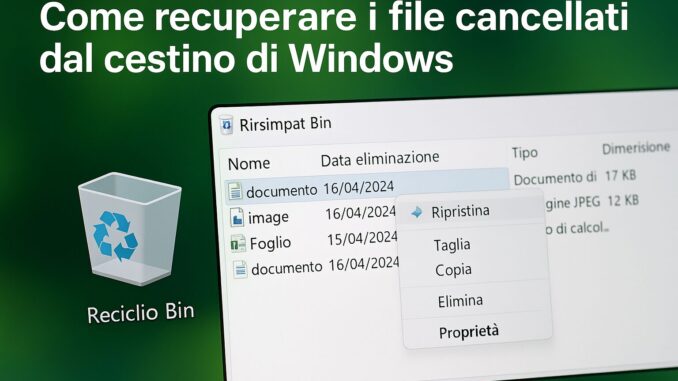
If you have not yet emptied the Recycle Bin, recovering files is a simple and immediate operation. Here are the steps to follow:
- Open the Recycle Bin by double-clicking its icon on the desktop.
- Locate the files you want to recover.
- Select the files (you can select multiple files by holding Ctrl while clicking).
- Right-click on the selected files and choose Restore.
The files will be automatically restored to their original location. If you don’t remember where they were, you can see the original location in the “Original Location” column in the detailed view of the Recycle Bin.
This method only works if the files are still present in the Recycle Bin and it has not been emptied. If you have already emptied the Recycle Bin, use one of the methods described below.
Using Windows Previous Versions
Windows offers a built-in feature that might help you recover deleted files: Previous Versions. This feature is based on system restore points or File History if enabled.
To access Previous Versions:
- Open File Explorer and navigate to the folder that contained the deleted files.
- Right-click the folder and select Restore previous versions.
- If previous versions are available, select the one that may contain the lost files.
- Click Restore to revert the folder to the previous state.
If you have enabled File History (Windows 10/11):
- Open the Start menu and type “restore files”.
- Select Restore files with File History.
- Navigate to the folder that contained the lost files.
- Use the arrows to view previous versions.
- Select the files to recover and click on Restore.
These features are useful but only work if they had been previously activated. Otherwise, proceed to the other methods.
Recover files with specialized software
When built-in Windows methods don’t work, data recovery software often offers the most effective solution. Here are three popular options:
Disk Drill
Disk Drill offers an intuitive interface and powerful recovery algorithms. The free version allows recovery of up to 500 MB.
- Download and install the program on an external drive (to avoid overwriting).
- Launch Disk Drill and select the affected disk.
- Click on Search for lost data to start the scan.
- When done, preview the found files.
- Select the files and click on Restore.
Recuva
Recuva is a free solution developed by Piriform (the makers of CCleaner).
- Download and install the program.
- Start the wizard and choose the file type.
- Select the location to scan (including entire disk).
- Start the scan.
- Select the files and click on Recover.
Wondershare Recoverit
Recoverit is a professional software with advanced features and preview for recoverable files.
- Download and install the program.
- Select the affected disk.
- Start the scan.
- View the preview of the found files.
- Select the files and click on Recover.
Deep scans often detect more items but take more time.
Use the Windows Command Prompt
For advanced users, the Command Prompt can offer a recovery attempt:
- Open the Command Prompt as administrator.
- Run:
chkdsk X: /f(replaceXwith the drive letter). - When finished, run:
ATTRIB -H -R -S /S /D X:*.*
You may recover hidden files with generic names, so identification is not always immediate.
Windows File Recovery: Microsoft’s official tool
Windows File Recovery is a free tool (Microsoft Store) for Windows 10 19041 or later. It is used via command line.
Basic syntax:
winfr unità-di-origine: unità-di-destinazione: /modalità /filtriExample (recover Word files from C to E):
winfr C: E: /regular /n *.docx- Regular mode: for recently deleted files.
- Extended mode: for long-deleted files or after formatting.
Prevent future data loss
- Create regular backups with OneDrive, Google Drive, or external drives.
- Increase Recycle Bin size (right click → Properties → Custom size).
- Enable File History for automatic copies of personal files.
- Use cloud services with versioning (OneDrive, Dropbox, Google Drive).
- Organize your files with logical folders and descriptive names.
No method guarantees 100% recovery: time and disk usage after deletion are determining factors. Prevention, with regular backups, remains the most reliable strategy.
Conclusions
Recovering files deleted from the Windows Recycle Bin is possible with several approaches: from direct restoration of the non-emptied Recycle Bin, to integrated tools (File History, Windows File Recovery), up to specialized software (Disk Drill, Recuva, Recoverit). Success mainly depends on the time elapsed and the activity on the drive after deletion: act quickly and invest in good backup practices to minimize risks.
Pubblicato in Guides & Tutorials
Be the first to comment