
How to install and use a Smart Tag that allows automatic conversion of international measurements related to length, capacity, temperature, area, speed, and weight, simply using Word.

Add us to your preferred sources.

This space is dedicated to the use of special add-on components that Microsoft provides to Word users.
These are Smart Tags, applications that integrate with the program to perform automatic tasks within the text. To view or download them, you must access the Office Online space.

To consult Office Online you must go to the Internet address http://office.microsoft.com or choose in the Word document the item ? > Office on the Web which will automatically open the same Web page. To enter the space dedicated to Smart Tags just follow the path Download > Download for Office XP > Word 2002 > Smart Tag for Word 2002.
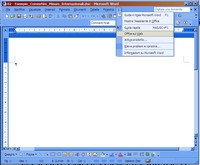
Now let’s download Word 2002 – Add-in: Smart Tag for unit conversion. With one click on the link you access the Download area. Here you must click on the Download link and then follow the instructions displayed in the dialog windows. Once the program “MetST.exe” has been downloaded to the hard drive, a double click will start the installation.
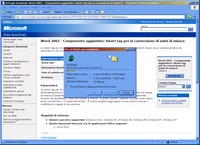
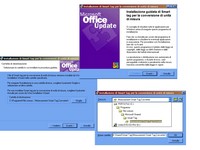
The installation of “MetST.exe” must be performed by closing all open Office applications. By accepting the license conditions, you will be asked where to place the additional application. If no destination is given, the software component will be placed by default in C:ProgrammiFile comuniMicrosoft SharedSmart TagMeasurement Smart.
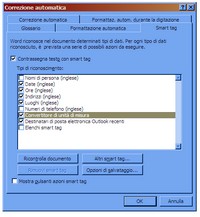
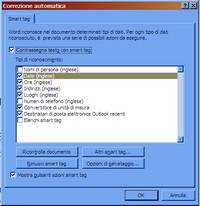
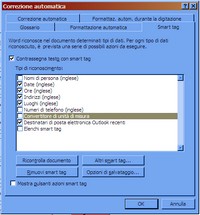
Reopening the Microsoft Word program you will notice the addition of the newly installed Smart Tag by accessing the Tools menu > AutoCorrect Options > Smart Tag. Here you will see a series of actions already activated by default (for example, Dates, Times, Addresses, etc.) marked with a check mark. Among these is Unit Converter.
The installed Smart Tag allows the execution of actions that would normally require opening other programs. In particular, it automatically identifies and tags international units of measurement in Word 2002 documents. Once the measure is identified, you can use the Smart Tag to convert it to a different international unit of measurement.
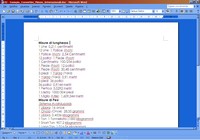
How is the activated Smart Tag identified in the text? Every time you write units of measurement related to Length, Capacity, Temperature, Area, Speed, and Weight, a dashed purple line appears under the text. This indicates that it is possible to apply conversion functions from one unit to another by automatically calculating the new values.
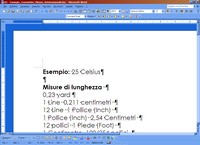
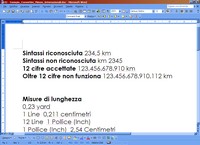
For the Smart Tag to work, the syntax of the units of measurement must be of this type: , for example “1.234,678 km”. Also, the Smart Tag recognizes numbers consisting of up to 12 digits, including decimal ones. Most conversions are a simple multiplication by a coefficient.
Let’s move on to some examples. To facilitate conversions, you need to activate the Smart Tag Action buttons by selecting Tools > AutoCorrect Options > Smart Tag > Show Smart Tag action buttons. Every time a convertible unit of measurement is found, moving the mouse over the text displays a button with an “i” that hides a drop-down menu.
Let’s try writing the measure “25 C” (25 degrees Celsius). Placing the cursor over the text displays the Smart Tag action button. Clicking it brings up a drop-down menu. Inside, the first row will indicate which value was taken into consideration, the following the possible proposed conversions (for example, to Fahrenheit). Choosing one will convert the measure.
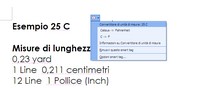
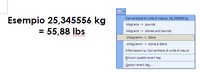
The same can be done with measures expressed in yards, inches, ounces, pints, pounds, feet, miles, etc., that is, with measures we are less accustomed to. All can be transformed into the more familiar measures expressed in meters, centimeters, kilograms, etc. The Smart Tag will offer a series of conversion opportunities each time to choose from.
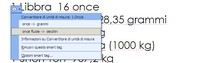
The Smart Tag for unit conversion rounds the results of all conversions. Precision varies depending on the number of decimal places in the result. For most conversions, it is set to 2 decimal places. Therefore, if precise calculations are required, it is advisable to use a scientific calculator.
What has been presented so far is just one of the Smart Tags available for Word. It is possible to download new features from the Web. From the Tools menu > AutoCorrect Options > Smart Tag, click on the More Smart Tags button which automatically allows access to the Internet page for downloading new components.
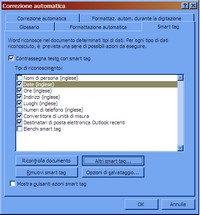
There remain two ways to disable the Smart Tag in case it is no longer needed. The first is used when you want to temporarily deactivate the unit recognition function. From the Tools menu > AutoCorrect Options > Smart Tag, just remove the check mark from the Unit Converter item.
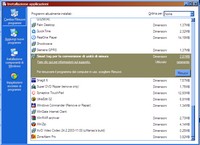
The second, more radical method, serves to remove the installation done at points 3 and 4. From the Start menu you must choose Settings > Control Panel. Here double-click the Add or Remove Programs icon. From the list of installed programs, select “Smart Tag for unit conversion” and then Remove, confirming the subsequent steps.
Be the first to comment