
How to create a journal electronic of the pregnancy, on which to note down appointments and the most important events. Here are a few steps to create a pregnancy journal, easily and intuitively.
Add us to your preferred sources.

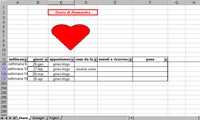
Let’s write the diary header in cell B2, choosing an appropriate style and color from the Formatting Bar or from Format > Cells menu, Font tab, Bold Style and Red Color. Then select the header cells and from Format > Cells, Alignment tab, activate Merge Cells and from the Border tab choose the preferred Style and Color of the Line, applying it with the mouse on the Custom model.

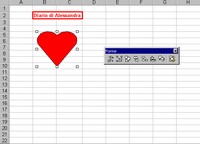
Let’s rename the first worksheet by typing Diary after selecting Format > Sheet > Rename from the menu or after double-clicking the sheet name. Then insert an image from Insert > Image menu: for example, choose Shapes and click on the desired group and clip. The pointer takes the shape of a cross: position it on the desired cell and click. Then drag the clip to the desired position.
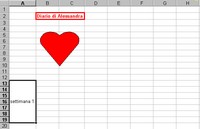
Below the header, in the first column insert the text “week 1”. Select this cell and the six cells below it vertically: choose Merge Cells and Vertical: center from Format > Cells, Alignment tab. To ensure that the text always remains visible in the cell, select Format > Column > AutoFit after selecting all with the Select All button at the top left at the intersection between the row and column headers.
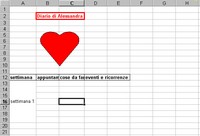
One row above the “week 1” cell, create a header row. If it was not planned previously, position on the cell with the text and from Insert menu choose Rows. Then type the headers, taking care to use a bold style (Format > Cells, Font tab, Style: Bold or Bold Button from the Formatting Bar). From the same Format > Cells menu, choose the Border tab, Default Bordered and Internal after selecting the header cells.
Give a better shape to all the present elements. With a double click on the image, the Format Shapes dialog box opens. Choose the Size tab and activate Lock Aspect Ratio to avoid distortion. Then click the Select All button at the top left at the intersection between row and column headers. Then choose Format > Columns > AutoFit and Format > Cells, Alignment tab, Horizontal: center.

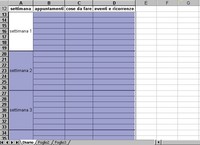
Now select the cells corresponding to the seven merged rows in “week 1” and the four titled columns. Open the Format > Cells menu, Border tab, and create a Custom border choosing thicker lines for the outside and thinner for the inside, applying them with the mouse. Now drag the entire selection downwards by pointing the mouse on the bottom right corner until you reach “week 40”.
If a column was forgotten in our grid, no problem. At any time, you can insert it from Insert > Columns: the column will be positioned to the left of the cell where you are positioned. Create a “Days” column and enter in the first row corresponding to “week 1” the date of the first day of the count. Then drag the cell down for automatic list completion.
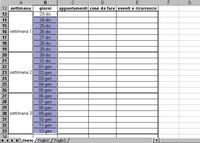
Lock the header so that it is always visible when scrolling down the page. With the pointer, select the Split Box, at the top right, above the scroll bar, and drag it down to the row of our header where it will be dropped. Then from Windows menu, choose Freeze Panes. At this point, we can start entering entries in our grid.
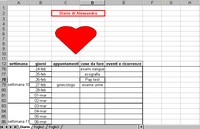
While entering items, make sure that the Category of the cells is General or Text (from Format > Cells, Number menu) so as to display exactly the text you enter. Then, check that Enable AutoComplete for cell values is active from Tools > Options, Edit tab, Settings. This way, data entry will be partly automated.
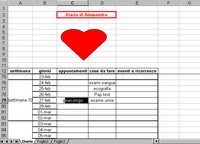
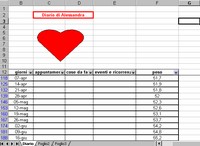
Now insert a new column for weight (Insert > Columns menu) and start entering values at fixed intervals. Then create a weight curve. Positioning the mouse on the header row, select Data > Filter menu, AutoFilter option. From the drop-down menu corresponding to the “Weight” entry, choose Customize. In the dialog box, with the drop-down menu create an expression “Weight” not equal to and leave the second term blank.
Now choose the Chart option from the Insert menu. In the dialog box, select from Standard Types, the Chart Type: lines, then Next. For Data Range values select the weight column in the worksheet as filtered. In the dialog box, choose Next, then enter an appropriate title and labels. Then choose to place the chart As object in: Sheet2. Choose Finish.
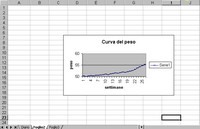
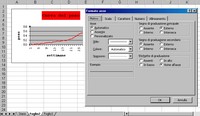
If the resulting chart is not satisfactory, simply click on it or on a single part of it. From the Format menu you will access the dialog box to modify the selected part. The same result is obtained by double-clicking directly on the area to modify. The opened dialog box allows you to modify the Format of any part of the chart as desired.
The diary can also be enriched with images. Rename Sheet2, which already contains the chart, to “Images” from Format > Sheet > Rename menu, or by double-clicking on the Sheet Tab at the bottom. Then, positioning the mouse where desired and from Insert > Image menu, choose From File and in the dialog box indicate the correct path of the previously captured image, then Insert.
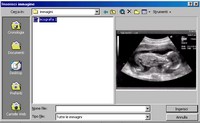
The inserted image is editable from the dialog box that opens with a double click, as already seen for the chart at point 12. At this point, in Diary choose the entry to which the image refers, for example “Ultrasound”. From the Insert menu, choose Hyperlink (or right-click). In the dialog box select the “Images” sheet and type the correct Cell Reference (for example A17) to display the desired image.

The diary can be completed with ultrasound images or any other photographs desired. It will function as both an address book to remember appointments and to know what needs to be done at a certain time. Searches can be performed automatically from Edit > Find or by keyboard shortcut Ctrl+Shift+T, but also by selecting the desired entry from the drop-down menu via the AutoFilter Arrows.
Be the first to comment