
If you use Excel but need a hand understanding it, here it is: 13 Excel formulas for SEO data management.

Add us to your preferred sources.

Excel has something SEOs can’t resist: flexibility, extensive data manipulation capabilities, complex analysis options, numerous integrations, and offline access if needed.
1. SUBSTITUTE
Replace specific text in a text string
Formula: =SUBSTITUTE(text, old_text, new_text, [instance_num])
SEO Use Cases:
- Data Cleaning. You can use the SUBSTITUTE formula when you need to remove unwanted characters or strings from your data. For example, you can remove special characters or extra spaces from your web page titles or meta descriptions to keep them neat and tidy.
- Keyword Research. With the formula, you can modify your keywords and generate additional variations. For instance, you can replace the letter “s” with “z” (like in analys and and analyz and ) to create a different spelling for a keyword or replace a prefix or suffix to generate long-tail keywords.
How to:
- Select the cell where you want the result to appear and enter the SUBSTITUTE formula in the cell.
- Within the formula, first specify the text cell you want to change, then the old text you want to replace, and finally the new text you want to insert instead. If needed, you can specify the instance number, which is the occurrence of the old text you want to replace with the new one. For example, you can specify instance_num as 2 and only the second letter or word of the old text will be replaced with the new one.
- Press Enter to see the result.
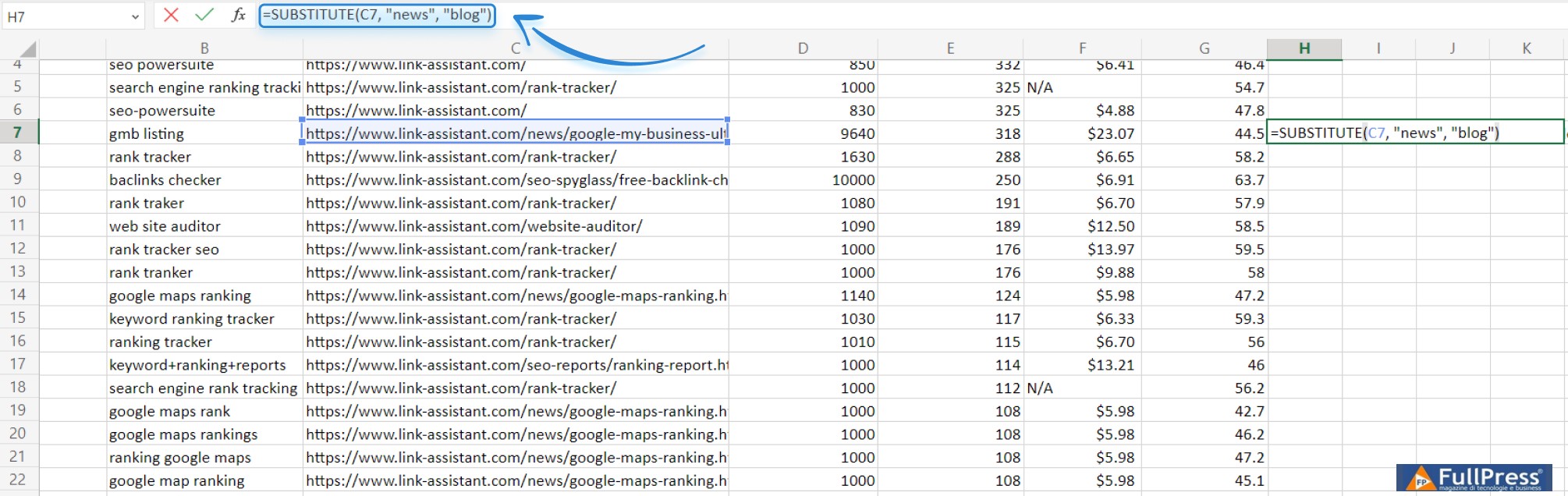
Here’s an example. I’m moving my blog posts to a new folder called “blog.” Therefore, I need to replace “news” in my URL with “blog.” To do this, I enter =SUBSTITUTE(C7, “news”, “blog”)” into a separate cell in my spreadsheet, where C7 is the cell containing the original URL.
Next, I can drag the formula down the entire column, and it will replace the values for other text strings as well.
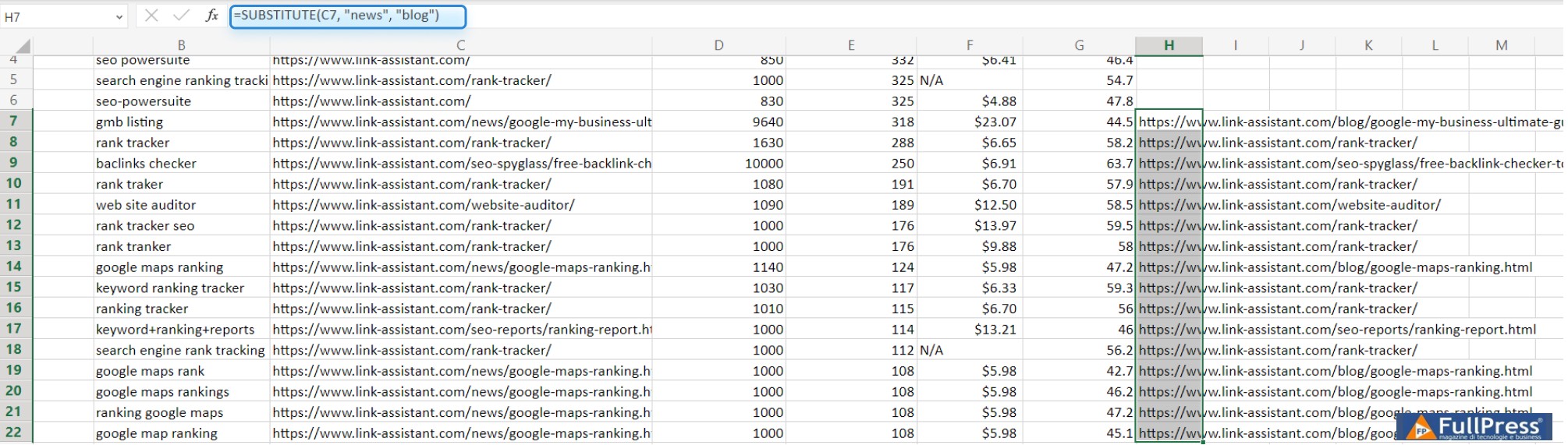
The autofill rule will work with all formulas unless you include absolute or mixed references within them.
Note. If your formulas aren’t working for some reason, try using a semicolon instead of commas. The reason for this lies in the regional difference in default list separators in European countries (semicolon) and American countries (comma). Alternatively, you can go to your computer’s regional settings and set the comma as the list separator.
2. CONCATENATE
To combine the content of multiple cells
Formula: =CONCATENATE(text1, [text2], …)
SEO Use Cases:
- Creating title tags. You can create optimized title tags for your web pages with CONCATENATE. For example, you can combine the main keyword, brand name, and other relevant information to create title tags that are both informative and SEO-friendly.
- Keyword Research. If you have an e-commerce site with many products that differ by a range of variables (gender, color, height, etc.), you can create all the necessary combinations (men’s red t-shirt, women’s yellow t-shirt) much faster.
- Data Analysis. You may need to combine several data points into a single cell. For example, you can combine the domain name, page URL, and page title into a single cell for easier analysis.
How to:
- Select the cell where you want the result to appear and enter the =CONCATENATE formula into the cell.
- Within the formula, specify the text strings you want to combine, separated by commas.
- Press Enter to display the concatenated string.
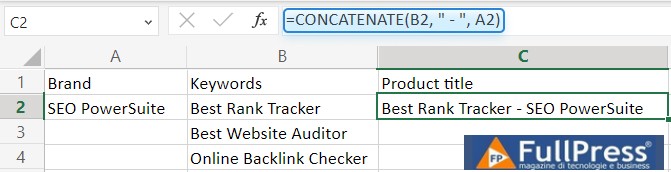
For example, I have a huge site with many similar pages and I need to find titles for them. What I can do here is combine the main key phrase of a page with a brand name into a single title tag. So, in my spreadsheet, I select the cell and enter “=CONCATENATE(B2, ” – “, A2). Here, B2 is the main keyword cell and A2 is the brand name cell.
3. AVERAGE
To calculate the average of some metrics
Syntax: =AVERAGE(number1, [number2], …)
SEO Use Cases:
Basically, all the use cases for this formula boil down to one category:
numerical data analysis. With the formula, you can calculate the average:
- keyword rankings for a group of keywords across multiple search engines or over time. This is necessary to track your SEO progress and identify areas for improvement.
- domain authority, page authority, or other backlink metrics for a group of websites or web pages. This way, you identify high-quality backlink opportunities and monitor the effectiveness of your link building efforts.
How to:
- Select the cell and enter the =AVERAGE formula
- Within the formula, specify the required range of cells and press Enter to calculate the average of the data.
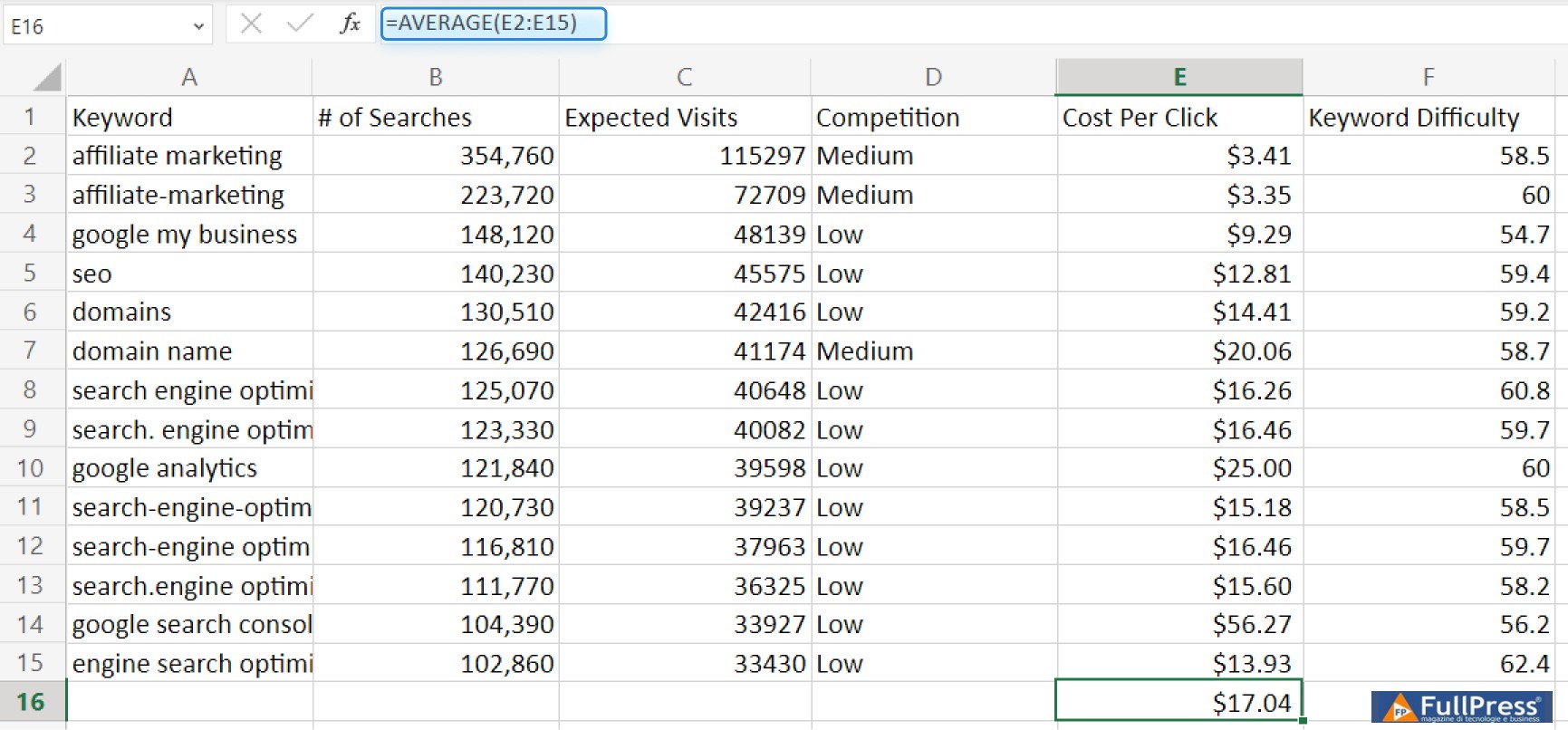
For example, I want to calculate the average CPC for a group of keywords. So I enter “=AVERAGE(F2:F15)” in a separate cell in my sheet, where F2:F15 is the range of cells I need to average. After pressing Enter, I see the average CPC for those keywords.
4. AVERAGEIF
Calculates the average of a range based on a specified condition
Formula: =AVERAGEIF(range, criteria, [average_range])
SEO Use Cases:
In a nutshell, use the formula for performance analysis. With it, you can calculate the average:
- page load time for a specific category of web pages, such as pages belonging to a particular folder or with specific tags. It can help you identify performance issues specific to certain sections of your site.
- keyword rankings that meet specific criteria (keywords related to a specific product or keywords with a particular search volume range). This way, you can gain detailed insights into the performance of different keyword segments.
- backlink count for websites that meet certain conditions, such as websites from a particular industry or websites with a specific domain authority range. With this information, you can easily analyze the backlink profiles of different websites.
How To:
- Select the cells where you want the result to appear and enter the =AVERAGEIF formula into the cell.
- Within the formula, specify the range of cells to evaluate and the condition to meet.
- Press Enter.
For example, I need to calculate the average expected visits for my low-difficulty keywords. In my spreadsheet, I select the required cell and enter “=AVERAGEIF(F2:F41, “<53", C2:C41)". F2:F41 is the range for which I will set the condition, and C2:C41 are the actual cells to use for finding the average.
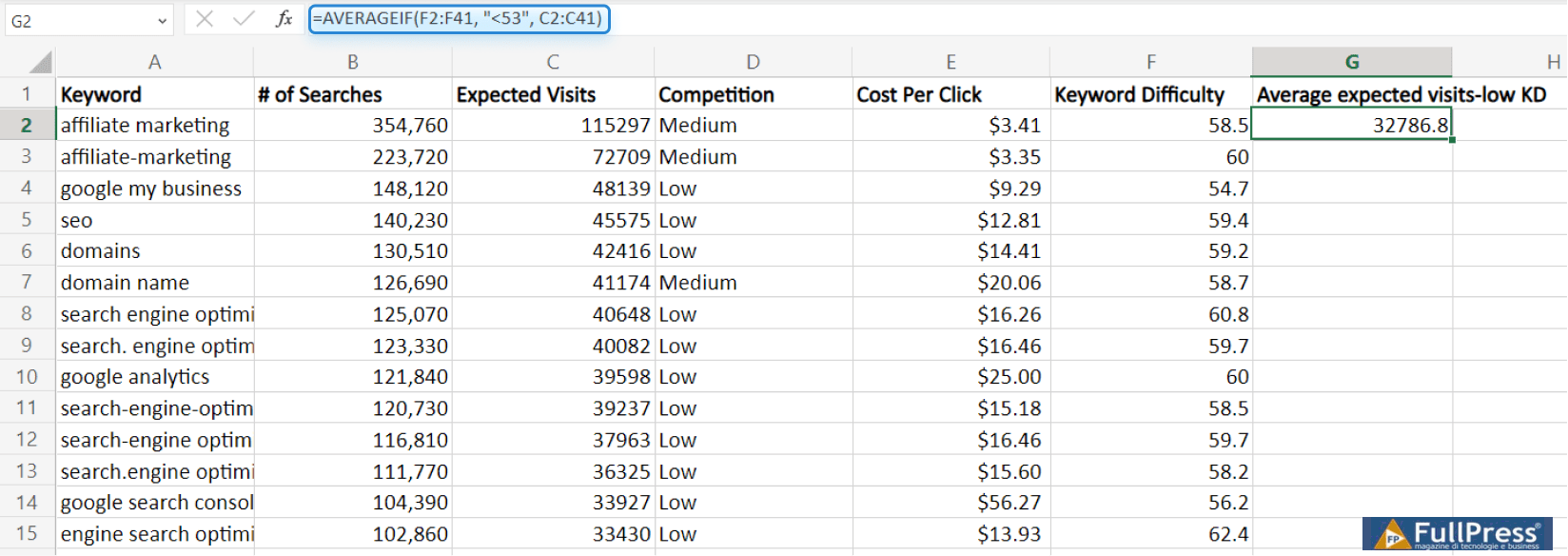
Note. Use AVERAGEIFS if you need to calculate the average of all cells that meet multiple criteria. The syntax will be as follows: =AVERAGEIFS (average_range, criteria_range1, criteria1, [criteria_range2, criteria2], …)
5. MEDIAN
To find a median of numerical values
Formula: =MEDIAN(number1, [number2], …)
SEO Use Cases:
- Rankings Analysis. You can calculate the median ranking position for a group of keywords.
- Traffic Analysis. You can determine the median organic traffic volume for a set of landing pages. This way, you can understand the typical traffic level and identify pages with unusually high or low performance.
How To:
- Select the cell and enter the =MEDIAN formula.
- Within the formula, specify the range of cells you want to find the median for.
- Press Enter.
For example, I want to calculate the average number of clicks for a group of keywords. Then, I select the cell where I want the result to appear and enter “=MEDIAN(B2:B9)”. Here, B2:B9 is the range of cells you want to find the median of.
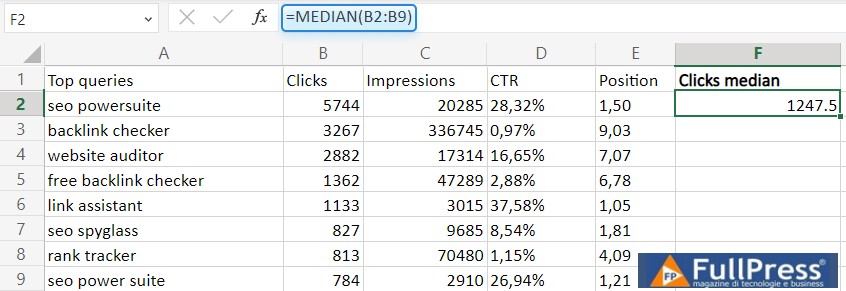
Side note: difference between AVERAGE and MEDIAN functions
This might confuse you if you know little about these two functions. The best way to explain the difference is to show the difference.

6. LEN
To check the length of text data
Formula:=LEN(text)
SEO Use Cases:
The LEN function can be useful for
text data analysis. You can calculate the length:
- of URLs for a group of web pages to identify excessively long URLs, which can negatively impact SEO.
- of meta titles and descriptions for a group of web pages. This can help you ensure that your meta tags fall within the optimal length limits for search engines.
- of your target keywords to identify long-tail keywords to optimize for.
How:
- Select the cell where you want the result to appear and enter the LEN formula into the cell.
- Within the formula, specify the cell or range of cells containing the text you wish to analyze.
- Press Enter to calculate the text length.
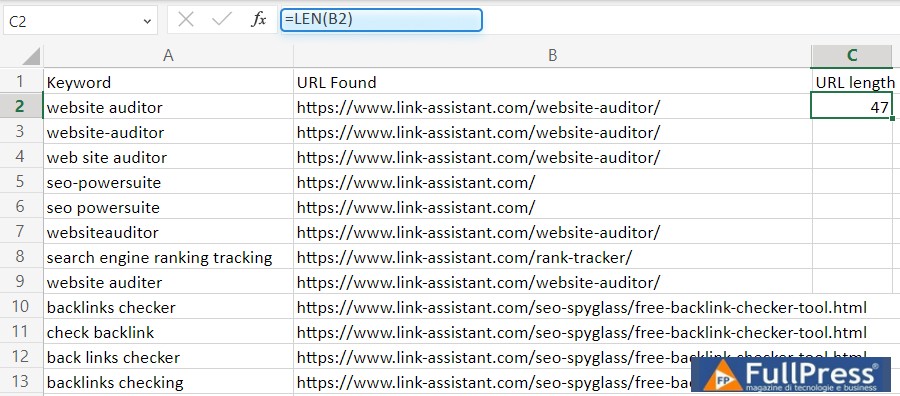
For example, I need to calculate the length of a specific webpage’s URL. I enter “=LEN(B2)” into a separate cell, where B2 is the cell containing the URL. I press Enter, and I see the result.
7. IF
To perform a logical comparison between two values
Formula:=IF(logical_test, [value_if_true], [value_if_false])
SEO Use Cases:
- Keyword ranking analysis. You can analyze keyword rankings across different search engines or time periods. For example, you can compare a keyword’s current ranking with the previous month’s ranking and get the formula to display a message if the ranking has improved or not.
- Backlink analysis. You can analyze backlink metrics and identify potential issues or opportunities. You can, for example, check if a backlink comes from a high-quality site.
How:
- Select the cell and insert the IF formula.
- Inside the formula, specify the logical test you want to apply. This can be a comparison between two values or a condition based on a specific criterion.
- Specify the value to display if the logical test is true and the value to display if the logical test is false.
- Press Enter to see the result.
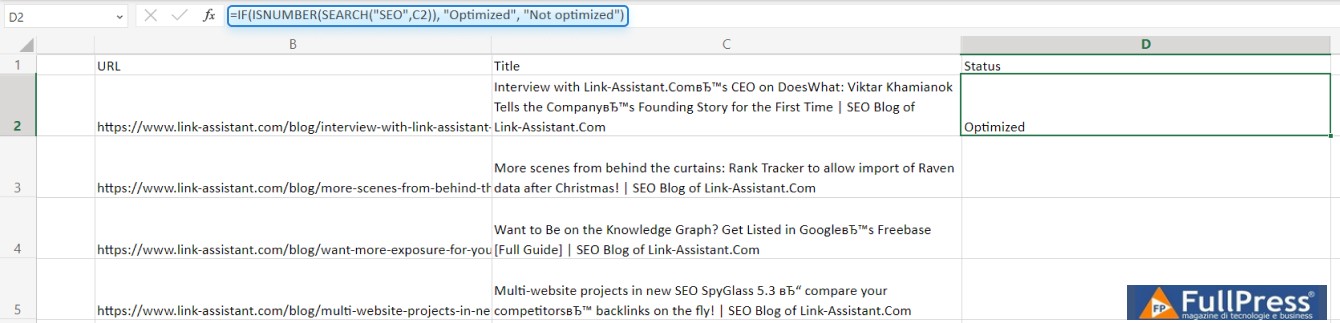
For example, I want to create a formula that displays “Optimized” if a specific keyword appears in the page title tag and “Not optimized” otherwise. So, I enter “=IF(ISNUMBER(SEARCH(“keyword”, C2)), “Optimized”, “Not optimized”)” into the cell. Here, C2 is the cell containing the title. In the result, my formula displays the appropriate message depending on whether the keyword appears in the title tag or not.
8. COUNTA
To count the number of cells in a range
Formula:=COUNTA(value1, [value2], …)
SEO Use Cases:
- Content performance assessment.For example, you can count the number of backlinks for a specific content piece. This can help you gauge the popularity and engagement of your content among your target audience.
- Content optimization assessment.You can also count the number of keywords a particular page ranks for to understand how well the content is written and optimized for relevant keywords.
How to:
- Select the cell and insert the COUNTA formula.
- Inside the formula, specify the values or cells you want to count, separated by commas.
- Press Enter.
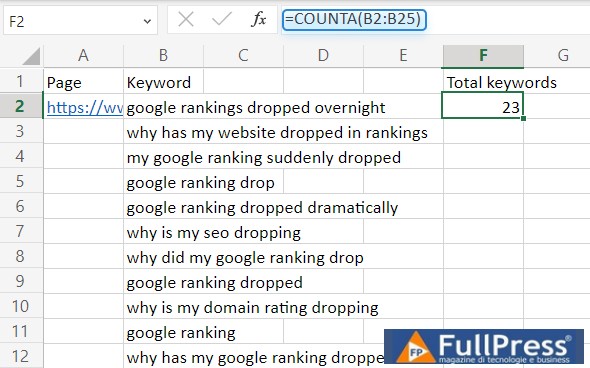
For example, I need to count the number of keywords my page is ranking for. So I insert “=COUNTA(B2:B25)” into a separate cell, where B2:B25 is the range of cells containing the keyword. The next thing I see is:
9. COUNTIF
To count the number of cells that meet specific criteria
Formula:=COUNTIF(range, criteria)
SEO Use Cases:
- Data consistency check.You can check for consistency in your data across different cells or sheets. For instance, you can count how many times a particular value appears in a column or check for the number of duplicate entries.
- Performance evaluation.You can track the performance of your web pages or backlinks over time. For example, you can count the number of visits, clicks, or conversions for a specific period and compare it with previous periods.
How to:
- Select the cell and insert the COUNTIF formula into it.
- Inside the formula, specify the range of cells you want to count and the criteria you want to apply.
- Press Enter to display the number of cells that meet the criteria.
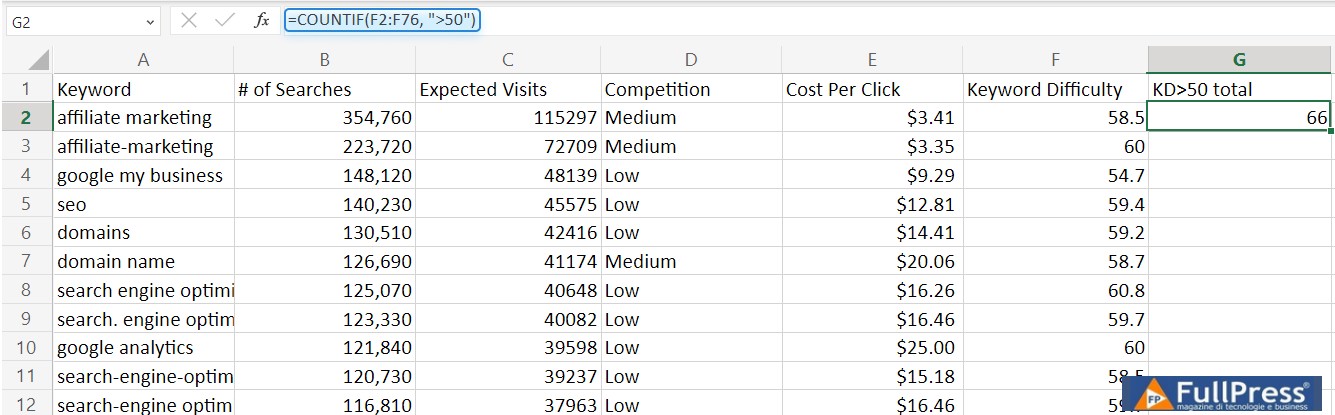
For example, I need to count the number of keywords with a Keyword Difficulty (KD) score greater than 50. So I type “=COUNTIF(F2:F76, “>50″)” into the cell where I want to see the result. Here, where F2:F76 is the cell range containing the KD metric and “>50” is the condition for a high-difficulty keyword. The formula will display the number of keywords that meet the criterion.
Note. Use COUNTIFS to apply criteria to cells across multiple ranges and count the number of times all criteria are met. Its syntax is =COUNTIFS(criteria_range1, criteria1, [criteria_range2, criteria2]…)
10. SUM
To calculate the total of some metrics
Formula:=SUM(number1, [number2], …)
SEO Use Cases:
- Calculating metrics and analyzing data. You can calculate various SEO metrics such as total organic traffic, backlinks, or social media shares. This way you evaluate the overall performance of your website or individual pages.
- Budgeting and forecasting. Use the SUM function to calculate budgets and create forecasts for your SEO campaigns. For example, calculate the total cost of your PPC campaigns or estimate the potential ROI of your content marketing efforts.
How:
- Select the cell where you want to display the result and enter the SUM formula into it.
- Inside the formula, type the numbers or cells you want to sum, separated by commas.
- Press Enter.
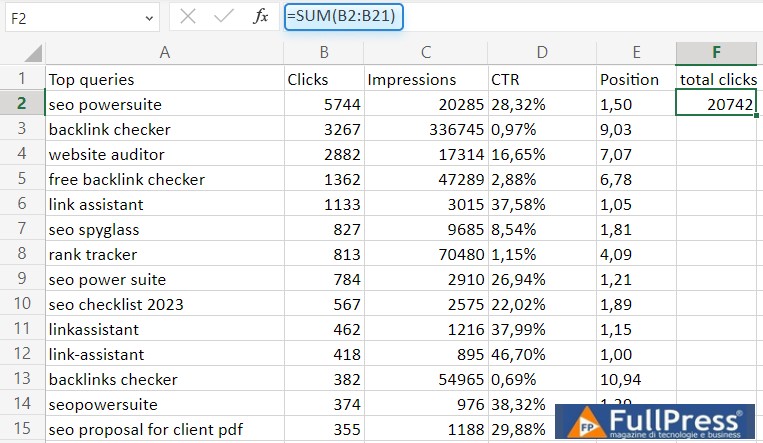
For example, I need to calculate the total clicks for a set of keywords. So I go to my spreadsheet and enter “=SUM(B2:B21)” into a separate cell. Here, B2:B21 is the range of cells containing the number of clicks for each of my keywords.
11. SUMIF
To sum a range of values that meet a specified criterion
Formula: =SUMIF(range, criteria, [sum_range])
SEO Use Cases:
- Traffic data analysis. With the formula, you can calculate the total traffic for a specific keyword or landing page. This will help you identify the most popular pages on your website or monitor the performance of your SEO campaigns.
- Link quality control. You can count the number of backlinks from high-quality domains. Afterwards you will be able to evaluate your website’s link profile.
- Comparing datasets. You can use the SUMIF function to compare datasets from different sources or time periods. For example, you can calculate the total search volume for a set of keywords and compare it with previous periods or with competitor data.
How:
- Select the cell and enter the SUMIF formula.
- Within the formula, specify the range of cells you want to evaluate, the criteria you want to apply, and the range of cells you want to sum.
- Press Enter to see the total sum.
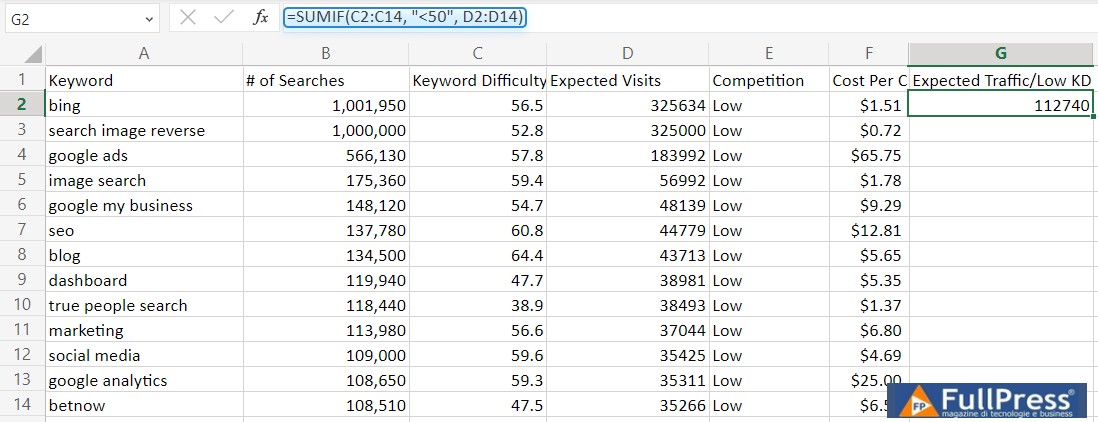
For example, I want to calculate the total estimated traffic for a set of low-difficulty keywords. So I enter “=SUMIF(C2:C139, “<50", D2:D139)" in a separate cell. Here, C2:C139 is the range of cells containing keyword difficulty, "<50" is the criteria for low keyword difficulty, and B1:B139 is the range of cells containing the estimated traffic data for each page.
Note. Tradizionalmente, you can use SUMIFS to sum cells in a range that meet more than one criterion. The syntax is as follows: =SUMIFS(sum_range, criteria_range1, criteria1, [criteria_range2, criteria2], …).
12. XLOOKUP
For matching data across different tables
Formula: =XLOOKUP(lookup_value, lookup_array, return_array, [if_not_found], [match_mode], [search_mode])
SEO Use Cases:
- Keyword Research. With the formula, you can search for a specific keyword in a large dataset and retrieve associated information such as search volume, competition, and estimated CPC.
- Competitor Analysis. For example, you can compare different websites or pages based on specific metrics like domain authority, page authority, or backlink count.
- Content Analysis. You can pull data on your content such as word count, readability score, or keyword density and compare it with similar competitor content or top-performing pages.
How to:
- Select the cell where you want to display the result and enter the XLOOKUP formula in it.
- Within the formula, specify the lookup value you want to search for, the array where Excel should look for the lookup value, and the return array where Excel should retrieve the associated information.
- Press Enter.
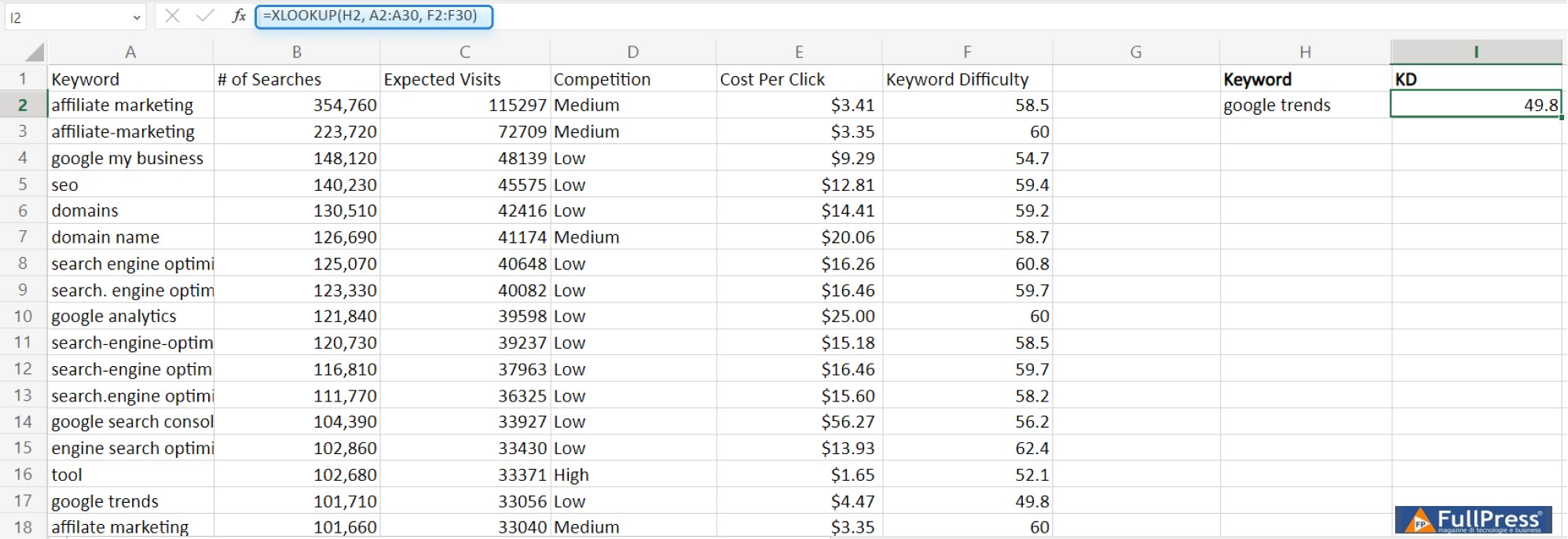
Suppose I want to retrieve the keyword difficulty of a specific keyword from a table containing multiple columns of data. So, I use the following formula: =XLOOKUP(H2, A2:A30, F2:F30). Here, H2 is the cell of the keyword you are analyzing (your lookup value), A2:A30 is the lookup array containing the keywords, and F2:F30 is the range from which Excel will retrieve the associated information.
13. MAX and MIN
To find the highest and lowest value in a data range
Formula: =MAX(number1, [number2], …) or MIN(number1, [number2], …)
SEO Use Cases:
- Website performance metrics analysis. You can find the highest and lowest bounce rate, page load time, or exit rate among your website’s pages. This information will help you identify areas for improvement and optimization.
- Keyword ranking comparison. You can find the highest and lowest positions in keyword rankings across different search engines or over a specified period. This way, you can track and improve your search engine visibility.
- Content Engagement Analysis.You can find the maximum and minimum number of shares, likes, or comments for a content. This can help you evaluate the popularity and engagement of your content among your target audience.
How to:
- Select the cell and enter the MAX or MIN formula within it.
- Inside the formula, specify the cell range for which you want to find the highest/lowest value.
- Press Enter to see the result.
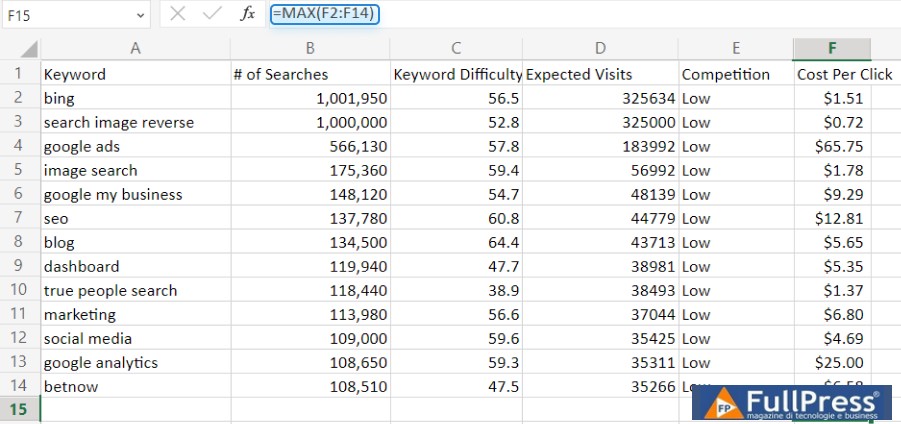
For example, I want to find the highest CPC among the keywords on my site. In my spreadsheet, I enter “=MAX(F2:F14)” in a separate cell, where F2:F14 is the range of cells containing the CPC data.
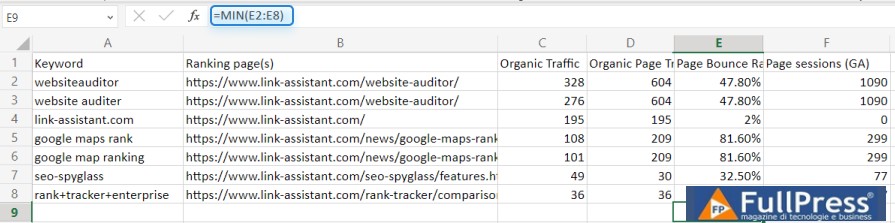
Similarly, if I need to find the lowest bounce rate among the pages of my website, I enter “=MIN(E2:E8)” in a separate cell, where E2:E8 is the range of cells containing the bounce rate data.
FAQ
Will Excel formulas work in Google Sheets?
Google Sheets and Excel are practically the same in terms of formula syntax. This means you can use many Excel formulas in Google Sheets with little to no modification.
However, there are some Excel-specific functions and formulas that are not available in Google Sheets, and some Excel formulas may produce slightly different results in Google Sheets due to differences in how the two programs handle certain calculations.
If you are familiar with Excel formulas and are transitioning to Google Sheets, it is a good idea to test your existing formulas to ensure they work as expected.
When I export data from my SEO tools into CSV, all the data appears in a single column in Excel. I can’t work with it. What should I do?
When you export your data and then open the file via Excel, you might see the following:
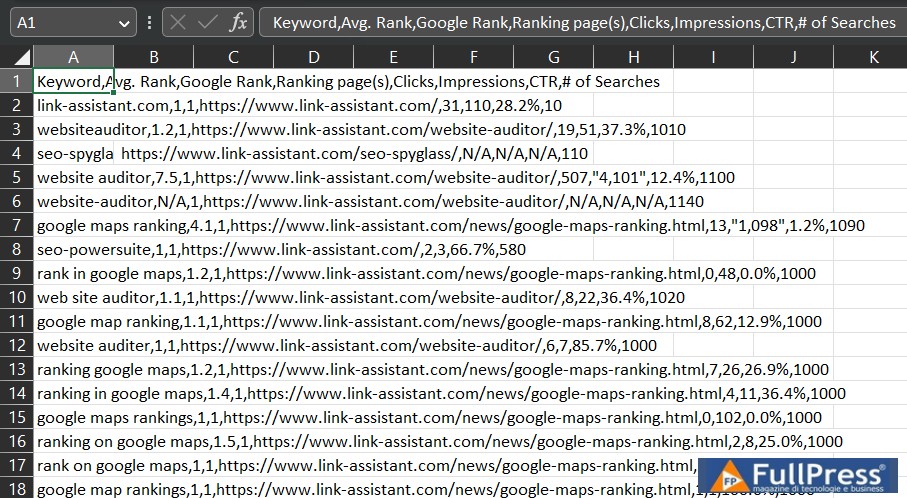
It’s neither readable nor manageable. What you need to do is:
1. Open a new Excel workbook, go to the0 Data0 tab on the ribbon, and click on0 Get Data from Text/CSV.
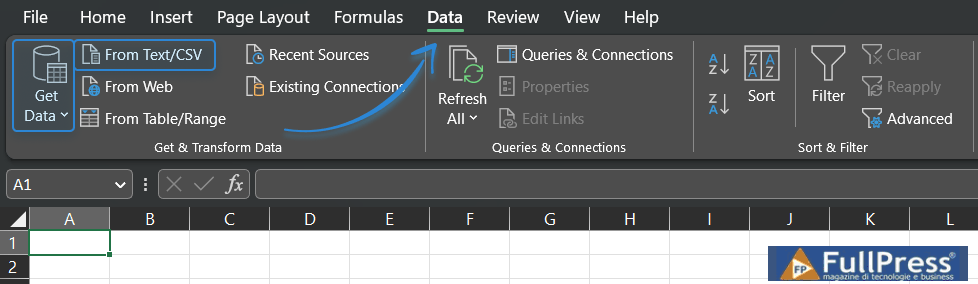
2. Select the necessary file, and in the popup window, choose comma as the delimiter.
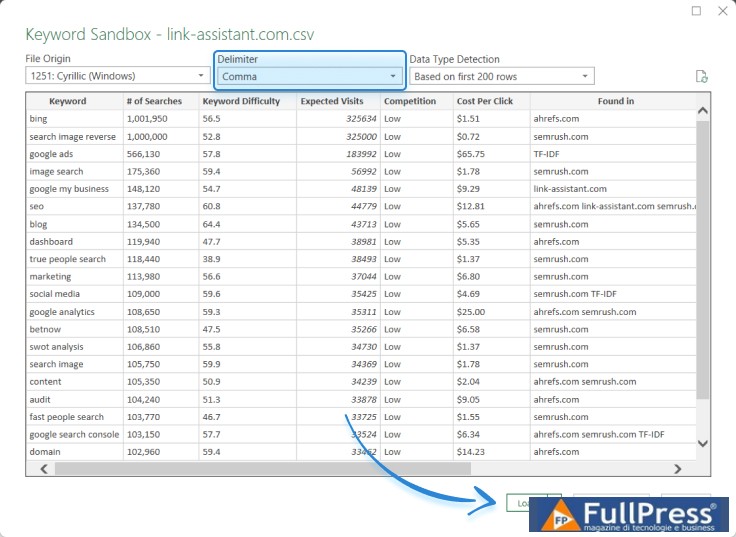
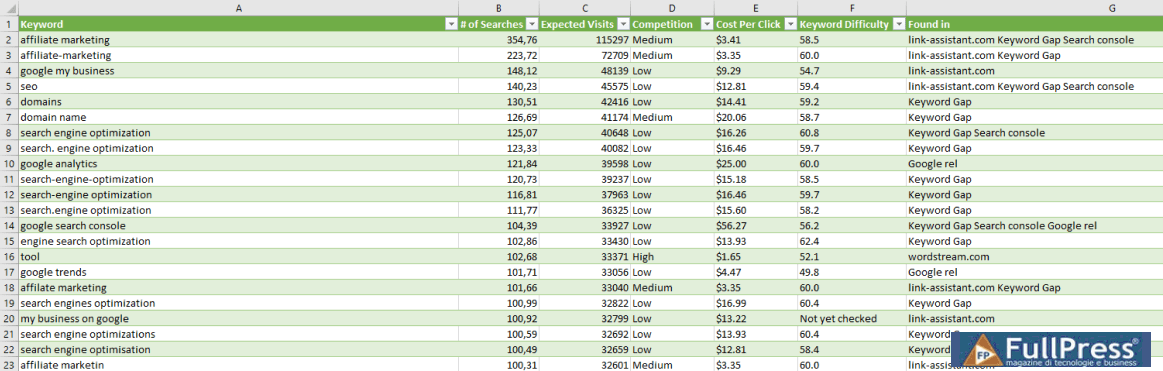
3. Click on0 Load0 to see the data well-presented.
Alternatively, you can learn how to0 import data correctly0 so you don’t have to worry about changing the delimiter.
What if I have a large dataset and want to apply a formula to the entire range? Is there an efficient way to do this?
Yes, Excel provides a feature called “AutoFill” that allows you to quickly apply a formula to a large dataset.
You can simply enter the formula in the first cell, select the cell, and then drag the fill handle (a small square at the bottom-right corner of the selected cell) across the range you want to apply the formula to. Excel will automatically adjust the references in the formula for each corresponding cell in the range.
Or it’s even simpler if you want to apply the formula for the entire column: hover over the bottom-left corner of the cell until the black plus sign appears, and then double-click. Your formula will be instantly applied to all cells in the column.
Can I combine multiple formulas in one cell to perform complex calculations or data transformations?
Excel allows you to nest formulas0 into each other to perform more advanced calculations. For example, you can use the output of one formula as the input for another. By combining formulas, you can create powerful and flexible calculations to analyze and manipulate your SEO data.
For example, with the SUBSTITUTE function, you cannot replace more than one string at a time. However, you can nest one SUBSTITUTE inside another like this: =SUBSTITUTE(SUBSTITUTE(A1, “string to replace”, “replacement string”), “string to replace 2”, “replacement string 2”). In fact, you can nest up to 64 levels of functions in a formula.
Source Link Assistant
Pubblicato in Excel
Be the first to comment