
Excel allows you to sort by one column at a time or by multiple columns. In this tutorial, we’ll show you how to do it.

Add us to your preferred sources.

One of the first functionalities many users start to use is the ability to sort data in Excel. Being able to automatically display data in a specific order, whether that be by number, alphabetically, or by date, is a huge time saver. Excel allows you to sort by one column at a time or multiple.
The sort buttons can be found in a wide variety of places within Excel. Which one you use really depends on your personal preference.
- Home Tab: access the sort options via the Sort & Filter dropdown on the right side of the ribbon.
- Data Tab: The Sort and Filter functions have their own dedicated group on the ribbon for direct access.
- Right-Click: Right-clicking offers numerous shortcut options including the Sort menu
- Quick Access Toolbar: I always have the Sort A-Z and Sort Z-A buttons at the top of my Quick Access Toolbar.
Let’s take a look at how to sort data in Excel.
Sorting Data Alphabetically in Excel
- Open Microsoft Excel
- A workbook containing the data you want to sort
- In this first example, I want to sort a list of names alphabetically from A-Z
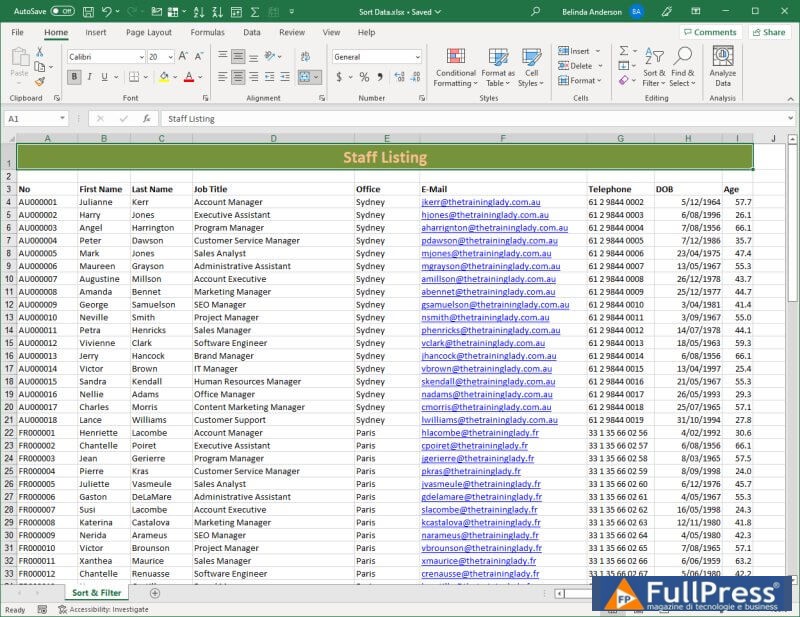
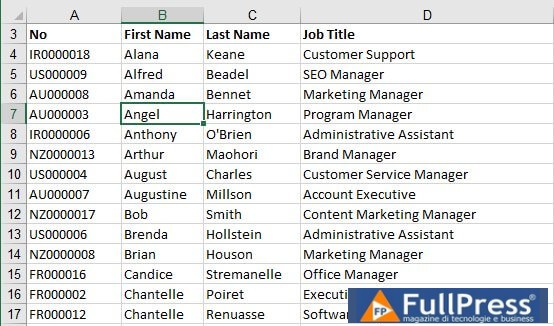
- Place your cursor in ANY cell within the column you want to sort, keeping in mind that it needs to be placed UNDER the header, as shown in my example:
TIP: you do not need to highlight the area first.
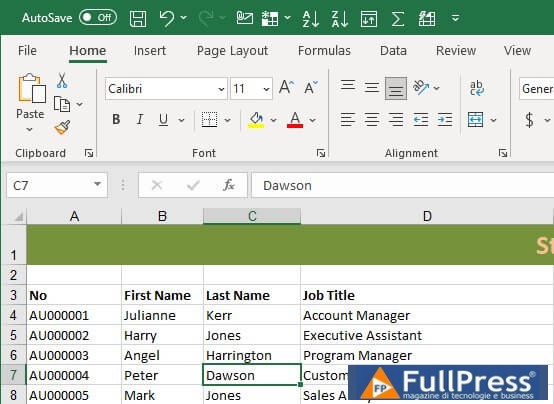
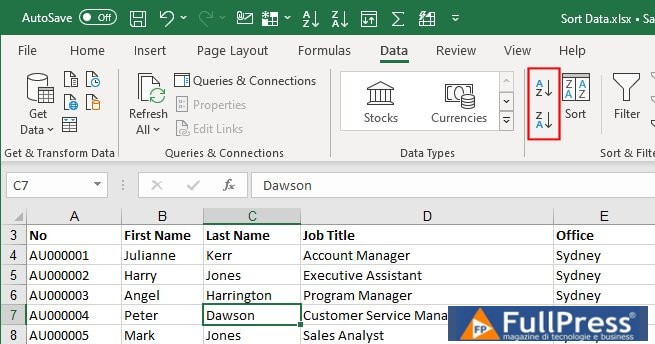
- Select the Data tab and choose whether you want to sort A-Z or Z to A or find the sort buttons in your preferred location described in the top of this article.
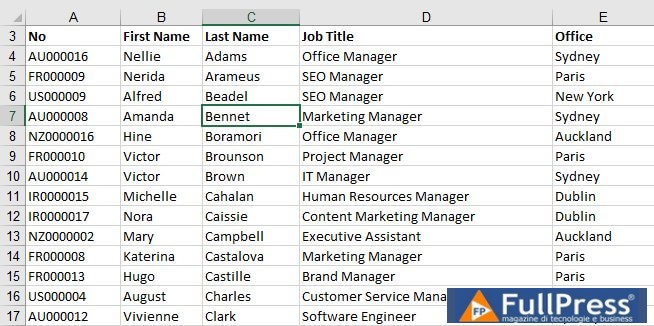
- The data will now be sorted alphabetically
- Click a different column, in my example I will now click the Name
- Repeat the process to change the sort of your data
Sort by Two Columns: Custom Sort
Now that you have seen how to sort by one column at a time, let’s look at how to sort by multiple columns. Let’s use my data as an example. I want all of my staff listed alphabetically by office location. I have 18 staff members in each office location. I would also like everyone within each OFFICE to be displayed alphabetically by their last name. How can I tell Excel that I want it sorted by BOTH of these columns?
- Place your cursor in ANY cell within the data area
- Select the Data tab and click on the Sort
- button
The Sort
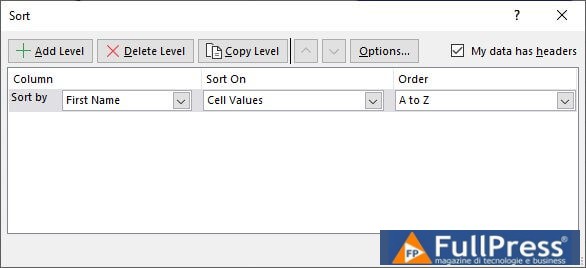
- window will appear
You will already see the last sort performed listed, we want to add a second sort option so that once Excel has sorted the first set of data it will go ahead and sort by the second criteria - I need to change the sort so that the first sort performed is the Office
- column
Click on the Add Level - button
The second sort level will appear
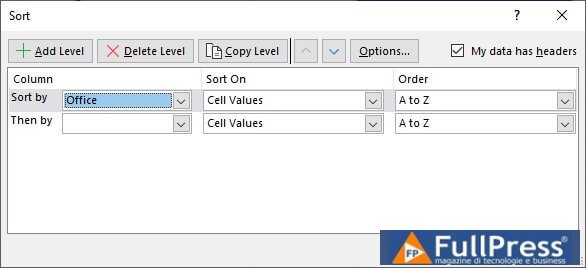
- From the second level, choose the next column you wish to sort by. For example on mine I will choose Last Name
- Now click on OK
- The data will now be sorted by the first column chosen, for example Office, then for duplicate records within that data set you will then have all staff listed in order by Last Name
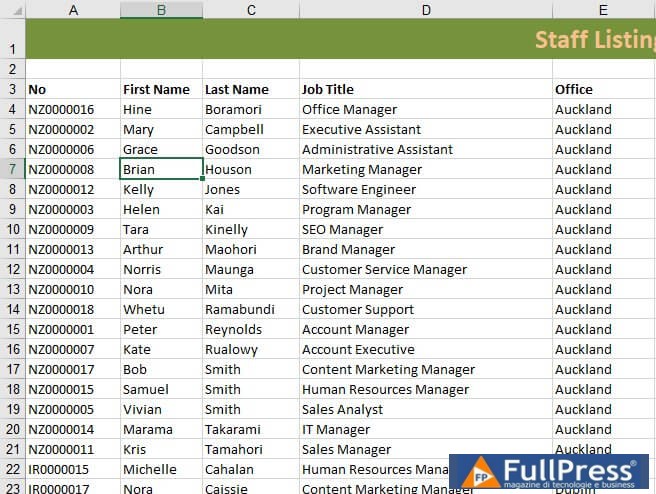
The process is the same regardless of whether you wish to sort text, numbers, currency or dates. I hope this helps you to learn how to sort data using Microsoft Excel. Comment below if you have any questions.
Be the first to comment