
Much of your website’s success in search stems from the decisions you make. And this is particularly true for a CMS like WordPress, which has accompanied the most popular blogging platforms for years.
Add us to your preferred sources.

Suppose you pick a theme and customize it slightly: you’re essentially locked into it. You can’t know if your customizations are compatible with a different theme and what will happen to your website if you switch.
The same applies to plugins. Yes, you can install and uninstall them freely, and in most cases, without consequence. But the effects of plugins aren’t always easily reversible, and often a trace of the plugin’s code remains on your website. As it accumulates, it can become a performance issue for your website.
So, here are a few things to think about when launching and optimizing your WordPress website.
1. Find a reliable hosting provider
The better the hosting, the faster your content will be served to your users. And this is especially important now that the Core Web Vitals have become a ranking factor, and an improvement in speed is an improvement in ranking.
There are many variables that affect hosting quality, but the main question is whether the hosting is shared or managed. Shared hosting is when a group of websites shares the same server. This means you can access all the server capacity left by other websites. And if you don’t have enough server capacity left, your website’s performance will drastically decrease.
Managed hosting is when your website is guaranteed a certain amount of server capacity. In addition, managed hosting usually offers a number of additional benefits, such as a CDN, an SSL certificate, frequent backups, and a support service to take care of technical matters.
To be fair, using shared hosting is rarely an issue for small websites, so managed hosting isn’t a must-have for everyone. But if you want peace of mind or are building a larger website, you should definitely consider managed hosting.
2. Enable an SSL certificate
In 2014, Google added HTTPS to the list of ranking factors. It’s not among the most important ranking signals, but switching to HTTPS might still give you a slight ranking boost.
Unlike most other CMS platforms, WordPress does not provide an SSL certificate out of the box. The easiest way to get an SSL certificate is probably through your hosting provider. Nowadays, most hosting companies offer a free SSL certificate, which is sometimes enabled by default and other times needs to be enabled manually. So the best solution is to log into your hosting dashboard and look for the SSL certificate settings.
After making sure your SSL certificate is enabled, you need to change your website’s address from http to https. To do this, open your WordPress dashboard and go to Settings > > General. In the WordPress Address (URL) and Site Address (URL) fields, enter your website’s homepage URL with https in it.
That’s it, your WordPress site will now be perceived by Google as safe to visit.
3. Use an SEO-friendly URL structure
WordPress offers a few templates for URL structure, as well as the option to create a custom URL template. Once you choose a template, it will be used throughout your website:
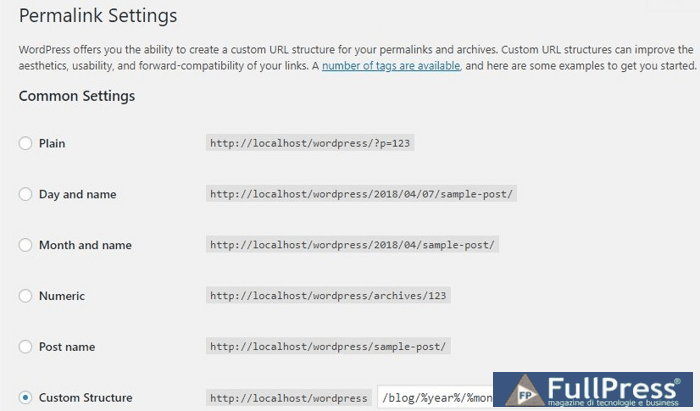
Keep in mind that most of these URL templates are not really SEO-friendly.
The plain text template is not descriptive and misses the opportunity to use keywords in the URL. This way, users cannot read your URLs, nor can search engines, so it’s also a user experience issue.
Using a date in your URL is also a bad idea. Blog posts are often updated later, for example, the top 10 meditation apps to use in 2020 become the top 10 meditation apps to use in 2021, and so on. But if you have a date in your URL, you can’t do that and will have to redirect the article to a new URL.
In the end, I would recommend using the post name URL template for your WordPress website as it is descriptive and not restrictive, unlike other URL options in the menu.
4. Choose an SEO-friendly theme
WordPress comes with thousands of free and paid themes, and most of them have a very attractive design. But, behind this facade, a theme can be riddled with unnecessary code, respond poorly to mobile device screens, or have hardly any customization options. And when these things come to light, changing themes becomes a major hassle.
To that end, it’s best to start with a long-standing theme that has many reviews and has proven itself in the field. Some of the most popular SEO-friendly WordPress themes include Divi, OceanWP, and Zakra
and Astra. But, if you intend to use a different theme, a good practice is to go to the theme’s demo and run it through Google’s web.dev tool for a quick audit:
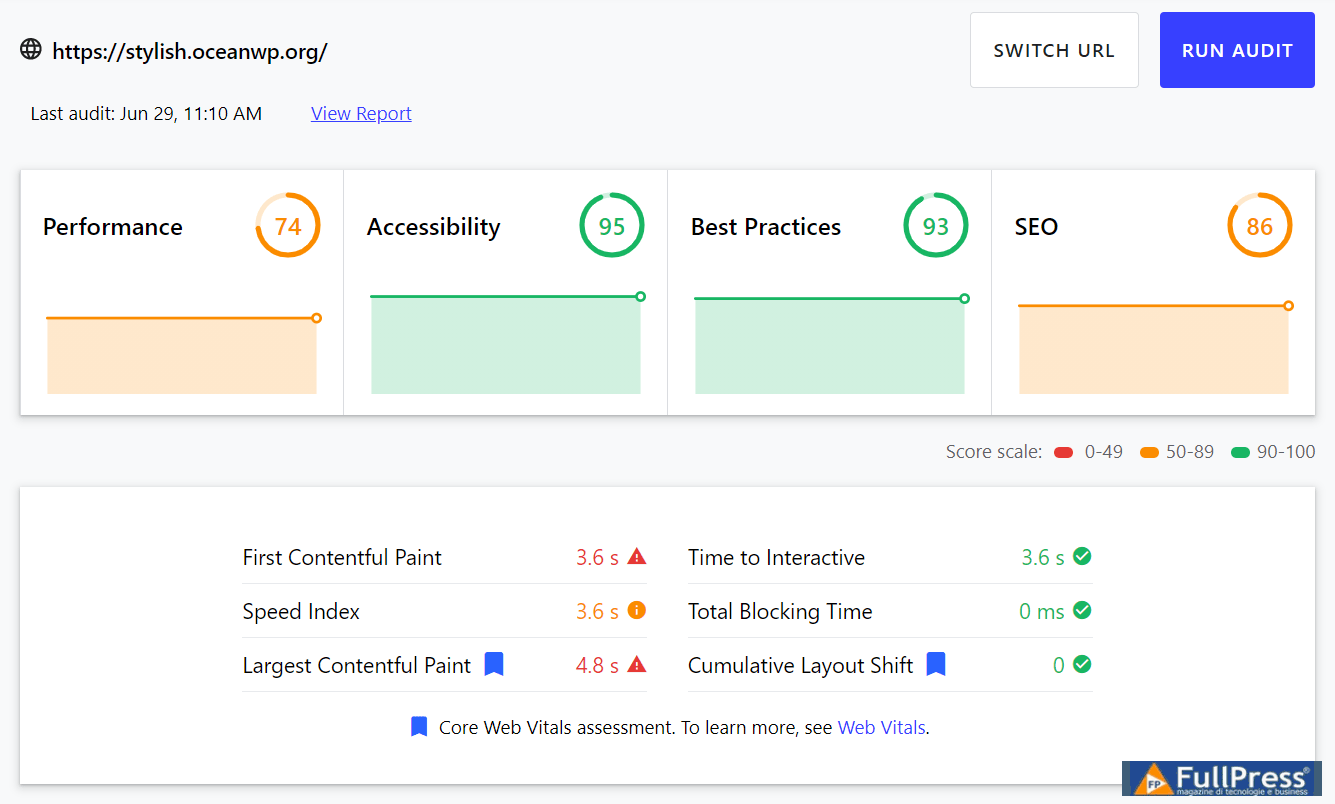
Naturally, once you use the theme on your website, customize it, and populate it with your own content, it will perform differently than the audit. However, make sure the audit doesn’t throw up any major red flags.
5. Go Easy on Plugins
WordPress is often a go-to choice for amateur website builders with little to no technical skills. Therefore, whenever they encounter a technical problem, they often install a plugin for a quick and easy fix. While this is a great option, the problem is that every added plugin contributes a little bit of damage to your performance, like making your website slower or glitchier or both.
As a general rule, the fewer plugins you install on your WordPress site, the better. Keep in mind that there is usually an external alternative to most WordPress plugins. For example, if you are trying to optimize your images, you can do that with an online compressor or a desktop editor. Schema markup can be added with Google’s rich results test.
Of course, you can’t avoid them entirely, but you can at least “vet your plugins carefully” to pick the lightest alternatives. Limited use of plugins is unlikely to hurt your performance in any measurable way. Especially if they are well-made and from reputable developers. In terms of SEO, some of the most popular plugins include Yoast SEO, All-in-one SEO pack, and Rank Math.
6. Check Your Visibility Settings
As you prepare to launch your website, don’t forget to tweak the visibility settings. All new websites are set to “Coming soon” by default and will only become visible after you formally launch them from the admin panel ( Settings > Reading > Privacy).
It’s also common to use “Public, but discouraged search engine indexing” settings during the development phase, so the draft website can easily be shared among stakeholders. If this is your case, make sure to allow indexing once you’re ready to share your website with search engines.
7. Verify Your Website with Google Search Console
Google Search Console is the definitive tool for monitoring and improving your Search performance. It has several categories of search reports, covering performance, indexing, user experience, search enhancements, and security.
To sign up for Google Search Console, visit the tool and submit your website’s URL. Google will give you a verification tag, which you’ll need to copy and add to your website’s code. To add the tag in WordPress, go to My Sites > Tools > Marketing > Traffic , scroll down to the Site Verification section, paste the code into the Google section, and click Save. Now go back to GSC, click Verify, and Google will be able to find the tag on your WP site.
Check out this guide for a more detailed description of the verification process.
8. Create and Upload Your Sitemap
WordPress does not generate out-of-the-box XML sitemaps. You can use one of the plugins to add this functionality. Google XML Sitemaps is probably the most used and reliable solution. When choosing a sitemap plugin, make sure it allows you to do the following:
- Include/exclude user-defined URLs;
- Include/exclude WordPress taxonomies;
- Set scan priority;
- Edit scan frequency.
Whichever plugin you end up using, it will most likely automatically generate the sitemap every time you create or remove a page on your website. The sitemap will also likely be stored using this URL: www.example.com/sitemap.xml.
While Google will likely find your sitemap on its own, you can ensure this by visiting your Google Search Console, going to Index > Sitemaps and adding your sitemap URL to the index.
9. Perform On-Page SEO
Once your website is set up, it’s time to fill it with content. Here are a few things to keep in mind when creating new pages on your WordPress website.
Find High-Intent Keywords
First, you need to find the keywords around which to build your content. And not just any keywords, but those that are most likely to generate organic traffic. This means keywords that are searched for often by users, but are not yet overused by your competitors.
Utilize Tags
Headings are important both as ranking signals and user experience factors. They break up the page into segments, making it easier to navigate and keeping users engaged. They are also a good place to use the keywords we just discovered in the previous part.
To add a heading in WordPress, click the Add Heading button or simply type /heading in the input field.
WordPress allows up to six heading levels, though is generally reserved for the page title and you rarely need to go beyond
, so we recommend organizing your pages by using
headings for main sections and
headings for sub-sections.
Add Title Tags and Meta Descriptions
The title tag and meta description are what you see in a search snippet. By default, WordPress does not let you set these when creating a post. All you can create is a page title and an excerpt, but these are not tagged with the proper HTML tags, so they are not the same as the title tag and meta description. So, technically, Google is free to create your search snippet from whatever it finds on the page.
If you want a little more control over what happens in your search snippet, you can use a plugin, most likely Yoast, to edit the page title and meta description. In Yoast, you can choose to edit a snippet and set a title and description that will be different from what you have set as the title and excerpt in the WordPress admin:
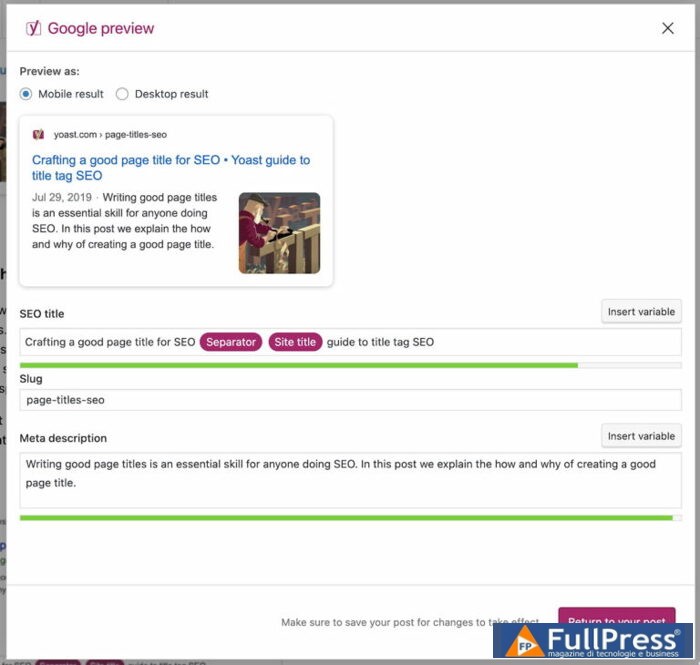
Both the title tag and the meta description are a great opportunity to use some of your keywords. The title is where to use the main keyword for the page, while it is best to leave the description for some keyword variations.
Add alt text to images
Although not its primary function, alt text describes the image content to the search engine. Alternative images are often overlooked by content creators, but they can be a great help in getting your images into image search results and improving the relevance of your content overall.
To add alt text in WordPress, go to theAlt textfield in the block editor when adding an image to a page. Alt text should be short, to the point, and descriptive, not stuffed with keywords.
10. Optimize Your Images
Image optimization has always been a part ofSEO learning, but it’s become particularly urgent now that Core Web Vitals are judging pages based on speed. One of the most important ones, Largest Contentful Paint, specifically deals with images, as images tend to be the largest content on any page. So the faster your images load, the better your pages will rank.
The most obvious way to speed up image loading is to make them lighter, i.e., compress them and use appropriate image formats. If you want to take it a step further, you can also lazy-load offscreen images and work on efficient encoding.
In the context of WordPress, most of these tasks can be handled with an image optimization plugin. Commonly suggested plugins include WP Smush, Imagify and reSmush.it. However, if you have a relatively small website and don’t need to process a lot of images, I’d still recommend opting for an external image optimization tool. Online tools like TinyJPG and TinyPNG will happily compress your images to about half their original size.
11. Implement Schema Markup
If you’re not familiar with Schema markup, I recommend this article on what Schema is and how to best use it. In short, it’s a system of HTML tags that helps Google find specific information on your page. For example, you can tag your phone number, and Google will know for sure that this is your phone number.
The benefit of using Schema is that Google better understands your content and can present it better in search. It can use Schema tags to create rich snippets, populate your local business card, and verify if your content is relevant for certain types of searches. In fact, there are some types of searches that you can’t even rank for if you haven’t implemented Schema on your pages.
To implement Schema on your WordPress website, it’s best to use a corresponding plugin. If you’re already using Yoast for your SEO needs, you can explore its Schema features. Otherwise, you can look for a dedicated Schema plugin, such as Schema or Schema & Structured Data for WP.
Once you have the schema markup implemented on your pages, make sure to see if it works by using Google’s Structured Data Testing Tool.
12. Optimize Code
After you have finished building and optimizing your WordPress website, you will likely find that it doesn’t perform as well as it used to. Themes, plugins, and manual customizations tend to leave a bit of a mess in the code. Over time, this clutter reflects in performance and especially in user experience reports.
One of the things you can do to improve code performance is to minify your HTML, JS, and CSS files. This means removing all unnecessary formatting, things like orphan code elements, line breaks, and comments. While the performance improvements are often minor, it’s possible for code files to lose up to a third of their file size. Recommended plugins for this job are Autoptimize, WP Super Minify and Fast Velocity Minify. Or, if you don’t want to install any more plugins and have a small website, you can try external code minifiers: CSS Minifier, JavaScript Minifier and HTML Compressor.
Another thing you can try in order to optimize your code is to defer non-essential JavaScript. This basically rearranges the order in which different bits of code are executed during page load and pushes the non-essential bits further down the line. This, again, can be achieved with any number of WordPress plugins, namely Async JavaScript, Autoptimize and Speed Booster Pack.
Conclusion
It is certainly much easier to build a WordPress website than to build one from scratch. At the same time, many of the out-of-the-box solutions we use on WordPress come at the cost of performance. I would say that this is the main theme when trying to optimize a WordPress website: don’t just go for any plugin, do your due diligence when installing additional software, and use external tools when possible.
Pubblicato in Digital Tools
Be the first to comment