
Entering data into a spreadsheet without formatting it is the quickest way to induce a migraine. Google Sheets (and all major spreadsheet apps) incorporate the concept of styles, which simplifies batch formatting. Here are some ways to replicate your desired style across all spreadsheets.

Add us to your preferred sources.

Spreadsheets are great for organizing and manipulating data, whether it’s an office report, a household’s monthly budget, or a Stardew Valley gift guide. Copying and pasting data is integral to working on spreadsheets, and Google Sheets is no different.
What are Styles and Why Do You Need Them?
A style is a set of formatting characteristics (like font size, color, and text alignment) that can be applied to the document, much like a design template. Suppose you want all the cells in the header row to display as white font on a blue background. Instead of doing this individually for every cell in your spreadsheet, you format one cell and then replicate the same style for the remaining cells.
The primary purpose of a spreadsheet is to paint a picture with data. When used correctly, styles can draw users’ attention to data patterns and help them gather information more quickly. Copying a specific style and pasting it onto the relevant cells saves time and makes your spreadsheet consistent and visually appealing.
If you use Google Sheets for your number-crunching needs, here’s how to paste styles into your document to maintain consistent formatting. Whether you’re using one of the best Chromebooks, a regular desktop PC, or an Android phone, we show you how to do it.
How to Copy a Style in Google Sheets
Before we get into pasting a style, let’s copy some cell data first.
- Select the cell whose style you want to copy.
- Navigate to the Edit menu and select Copy.
- Alternatively, use the shortcut Ctrl + C on Windows (Command + C on Mac) to copy your desired style.

How to Paste a Style in Google Sheets for the Web
Google Sheets for the Web offers options for pasting the style you’ve copied. The methods we list below get the job done in just a few steps.
Paste a style using the Paint format tool
Google Sheets’ Paint format tool (the paint roller icon in the quick access bar) allows you to copy formatting within the document. This is the easiest method for pasting a style.
- Select the cell whose style you want to copy.
- Navigate to the quick access bar and click the Paint format icon.
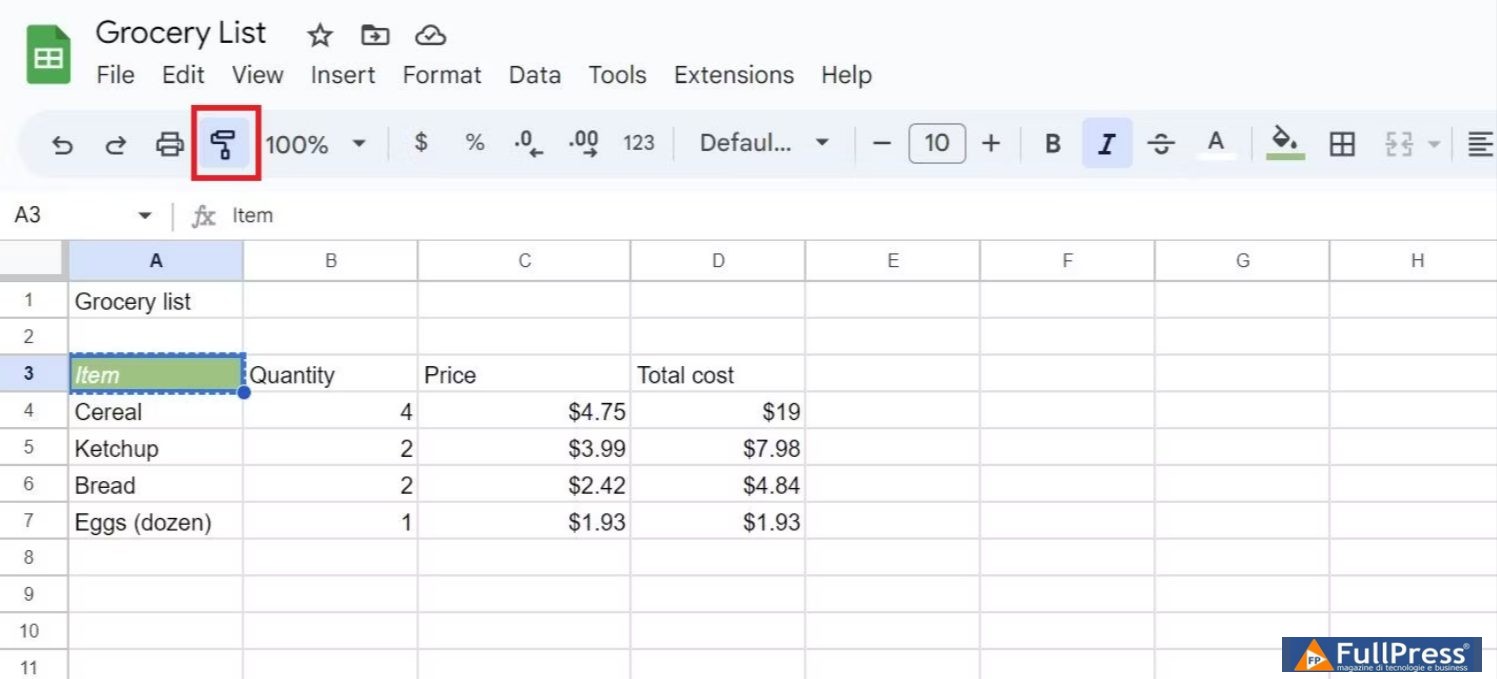
- Select the cell where you want to copy the style. This pastes the style onto the target cell.
Paste a style using the toolbar menu
- Select the cell where you want to paste the style.
- Open the Edit and hover over Paste special.
- From the submenu, select Format only.
- This transfers the cell style you copied, leaving the existing cell data intact.
Paste a style using the clipboard menu
- After copying the desired style, select the cell you want to format and pressCtrl + V on Windows (orCmd + V on Mac).
- Click on theclipboard icon in the bottom-right corner of the selected cell.
- Select thePaste only format option from the clipboard menu.
- This pastes the style into the destination cell without disturbing the original data.
How to paste a style in Google Sheets on Android
The web version of Google Sheets for desktop is more convenient than the Google Sheets mobile app. But if you don’t have access to a PC, the Google Sheets app works in a jiffy, allowing you to make quick formatting changes to your spreadsheet on the go.
We used an Android phone for this tutorial. However, the steps are the same for iPhones and iPads.
- Open your spreadsheet in the Google Sheets app.Google Sheets.
- Select the cell you wish to copy by long-pressing it. This opens a contextual menu.
- Tap on theCopy.
- option
- Select the cell you wish to copy the style to by long-pressing it.A contextual menu opens. Tap on thethree vertical dots
- to the right of the menu.Paste Special, then tap the Paste Format Only option.
- This pastes the style into the destination cell.
Be the first to comment