
Here is a useful tutorial to learn how to add your own signature to photos. Let’s see how to overlay a logo, a drawing, or simply our name on our photographs before sharing them on the Internet.
Add us to your preferred sources.

The simplest and most efficient way to sign a photo is to overlay it with an image or a text, usually your own name, copyright information, or your own logo. In this tutorial we will proceed by creating a black and white image to use as a signature. If you already have an image you want to use as a signature, you can use it, making sure it is exclusively black and white, without shades of gray.

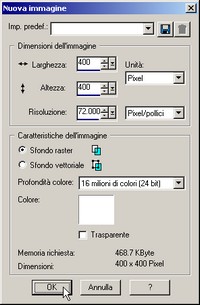
Let’s create a new image that will contain our signature. To be able to use it in the future on photos of any size, it must be large enough to be resized. So select the File/New command and enter the values, for example, 400 for both width and height, making sure the units are in pixels. Also select raster background and white background color.
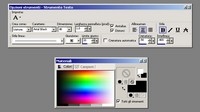
After choosing the Text tool, set the options for the writing that will become our signature: for a better final effect, choose a bold typeface, or use the bold option. The font size will vary depending on the length of the text; in our case it will be 40. Select the options create as vector and antialias. The fill color must be black.
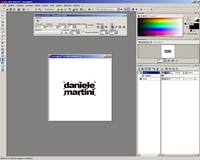
Click on the image, the Text Input window opens, type the desired text, in this case “daniele martini” and press Apply. Our writing will appear on the image and in the Layers palette a vector layer named Vector1 will appear, containing a text object called daniele.
Create a frame around our name. Select the Preset Shape tool and choose the shape you like best. In this tutorial we will use an oval. Set the outline color to black and remove the fill color. Select the settings Create as vector and antialias and set the stroke width to 15. Draw the oval with the mouse to the right size.
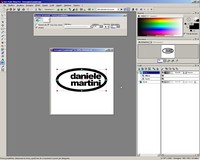
Proceed by aligning the oval and the text to each other and placing them in the center of the image. Look at the Layers palette; it contains the Background layer and a vector layer called Vector1, which includes a text object daniele and an Ellipse object. Choose the Selection tool (shortcut key O) and select in the Layers palette the daniele object and, holding down the SHIFT key, the Ellipse object.
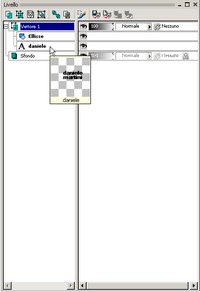
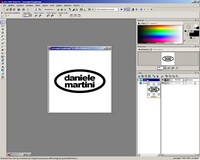
In the options bar choose Position on canvas and press the buttons Center horizontally on canvas and Center vertically on canvas. The result will be similar to the one shown in the figure. The writing and the ellipse will be positioned automatically in the center of the image and aligned with each other. Save the image.
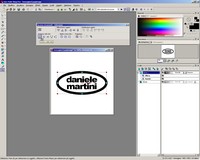
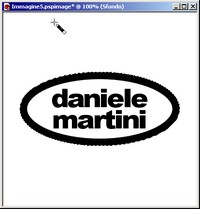
Merge all layers Layers/Merge/Merge all (flatten). Then select the background with the magic wand, that is the white part around the oval. Then invert the selection with Selection/Invert (shortcut Ctrl+Shift+I): at this point only the oval area will be selected. Choose from the Edit menu then Copy: our signature will be copied to the clipboard, ready to be used on our photos.
Open the image on which you want to apply the signature, and select from the menu Edit/Paste/Paste as new layer (shortcut Ctrl+L). A new layer with the signature called Raster1 has appeared on our image. Rename this layer by calling it signature: Right-click on the layer name in the Layers Palette, choose rename and type signature.
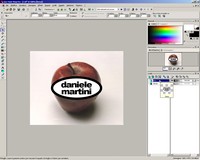
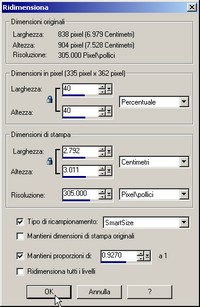
If the signature is larger than the photo it is applied to, resizing it will be very simple, go to the Image menu and select Resize. Choose a percentage value, e.g. 50% both horizontal and vertical and make sure that the Resize all layers option is not checked. If our signature is still not the right size, undo the transformation and repeat it with a different percentage.
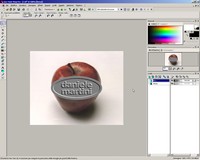
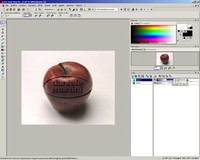
Now we are ready to apply the emboss effect to the signature layer. Select from the menu Effects/Texture Effects/Emboss. The image above shows the effect obtained, the text and the oval appear embossed.
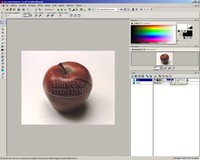
Look at the Layers palette, immediately next to the layer name, various options appear including blending modes. For the signature layer, choose Soft Light, this way we will have signed our photos clearly and unobtrusively. Experimenting with the various proposed blending modes, we will find that the Overlay mode can also give excellent results.
Another method to apply our signature to a photo is to use it to define a shading on the image. Open the signature image that we saved at the end of step 7, or repeat the tutorial up to point 7.
Select the vector layer Vector1 in the Layers Palette and from the menu choose Selection/Select all (shortcut Ctrl+A).
Copy the selection with Edit/Copy. Open the image on which you want to apply the signature. Create a new empty layer with Layers/New raster layer. Choose from the menu Edit/Paste/As new selection. Position the signature on the image, and choose from the menu Selection/Lock. Press the Delete key (or Del), a blank selection will remain on the image, with our signature.
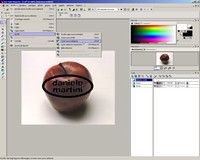
Choose from the menu Effects/3D Effects/Drop Shadow. Set the Offset to 3 both vertically and horizontally and apply the effect. Deselect from the menu Selection/Select none. Experimenting with the blending modes using Overlay, or Hard Light, or Strong Light, excellent results can be obtained. The image above shows the final result.
Be the first to comment