
Here is a simple tutorial to learn how to create a custom calendar using Word XP.

Add us to your preferred sources.

Here is a simple tutorial to learn how to create a custom calendar using Word XP.
To easily create our calendar, we can use a tool provided by Word XP; let’s start by selecting File > New…. In the Task Pane that appears on the right side of the page, locate the General Templates entry…; with this choice, we open a new window and, on the Other Documents tab, double-click on Calendar Wizard.

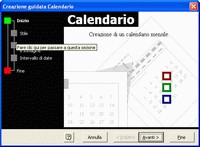
By activating the command seen above, we start the wizard procedure; the first screen describes the steps that will be performed in creating the calendar. Using the diagram on the left, we can move through the different screens; note that if we select the Finish button before defining all choices, the calendar will be created with the default Word XP parameters.
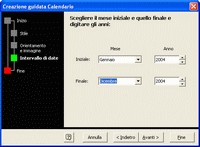
In the Style section, choose the type of calendar you want to create from the three possible options; in Orientation and Image, decide the page orientation and the insertion of an image in our calendar; while in Date Range, set the start and end month and year of the calendar’s validity. Using the Finish button, close the choice screen and proceed to the Word document.
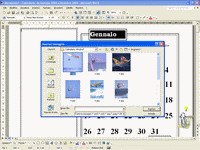
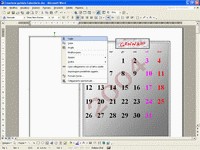
Let’s customize our calendar; remove the images inserted by Word by selecting them and choosing Cut from the menu that opens by right-clicking. To insert new images, position yourself in the empty box and use Insert > Pictures > From File…; the window that opens allows you to access and insert the selected images, which must be resized appropriately.
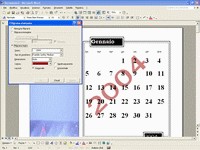
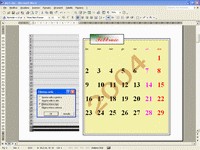
Further customization can be made by adding text to the background of the pages; select Format > Background > Printed Watermark. In the window that appears, set the chosen phrase, the font type, color, size, and orientation; use the Apply button to verify that the text is positioned in the desired area and, finally, Close.
Let’s color the background of the boxes containing the days; select one by positioning the mouse pointer on the border and right-clicking. In the new menu, choose Format AutoShape…; under Color and Lines > Fill > Color, select a color from those already available or, thanks to the tools available under More Colors…, create one to your liking.
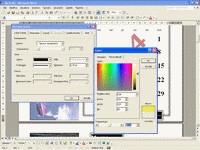
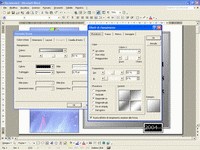
Let’s give a more elaborate background to the other boxes; in the Color box, accessible as seen before, select Fill Effects…. In the window that appears, you can choose from various options; we will use the possibilities provided by Gradients and Patterns. In any case, it is necessary to correctly set the Transparency percentage to keep the previously inserted text visible.
Make the days of the week easily identifiable by giving a different color to the weekend days. Hover the mouse cursor over the word “Sun,” near the edge of the box; a downward arrow will appear; left-clicking selects the entire column. From the Font Color icon on the Formatting toolbar, choose red.
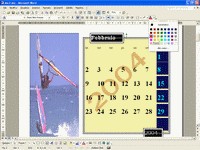
Highlight the days with special events (birthdays, anniversaries). Select the day as you normally do with Word text, then, again from the Font Color icon on the Formatting toolbar, access the color menu; be careful to choose one, even from More Colors > Custom, that is easily distinguishable from the background.
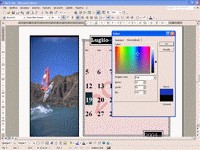
Modify the format and position of the boxes containing the year and month; select the box and, using the tools on the Formatting toolbar, modify Style, Font, Size, Alignment, and Font Color. Change their position and size by selecting them and using the handles that appear around them, and the background color as done for the days.
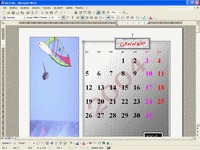
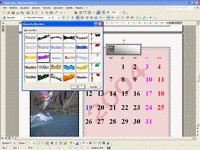
We can replace the month text with more lively graphic elements; select the chosen box and change the Style (from “Boxes Heading1” to “Normal”). At this point, select the contained text and use Insert > Drawing > WordArt…; in the WordArt Gallery tab, choose the style you prefer. In this case too, we can modify the background of the boxes and their position.
Alternatively, we can create a more useful calendar with some changes compared to the one just created; repeat the same steps seen so far but at step 4), after deleting Word’s images, do not insert new images. Also delete the empty box by positioning the cursor on its border, right-clicking, and selecting Cut.
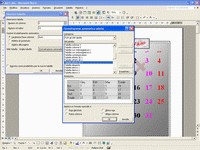
Now insert a table with Table > Insert > Table…; in the Insert Table window that appears, choose Number of Columns = 2 and Number of Rows = 31, then click AutoFormat…. In the new window, AutoFormat Table, select the table style you like best and deselect all check-boxes at the bottom; for example, choose Table Effects 3D 3.
Resize the table and adjust the width of the columns. Move the cursor to the middle of the table; when the cursor changes to two vertical parallel lines with two arrows, press the left mouse button and drag to make the first column narrow. Insert the numbers from 1 to 31 in it, leaving the second column empty to insert notes, appointments, or reminders.
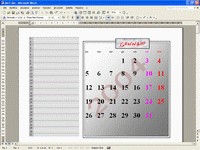
To insert the table into pages related to other months, select it by moving the cursor over the cross in the upper left corner and right-click; from the menu, choose Copy and then paste it on the desired page. Reduce the number of rows by selecting the last one(s) and right-clicking; choose Delete Cells… then Delete Entire Row.
Be the first to comment