
Here is a tutorial to track stock trends: a very simple method perfect for those who trade on the stock market and want to always have the full picture available, thanks to Excel.

Follow FullPress on Google
Add us to your preferred sources.

Here is a tutorial to track stock performance: a very simple method perfect for those who trade on the stock market and want to always have the situation overview at hand, thanks to Excel.
- Let’s open a new Excel document and select the items Format > Sheet > Rename or, equivalently, place the cursor over the sheet tab, right-click, and choose Rename; at this point, we can type Portfolio directly into the tab to rename the sheet. We will use the same technique to rename the other sheets later.

- Now, we need to find a website on the Internet from which to retrieve data; there are several that provide stock quotes and can serve this purpose. For example, we can use the site www.borse.it which provides a complete stock listing; let’s locate the first page where the quotes are reported (http://www.borse.it/Generico.php?T=3&P=1) and copy its address.
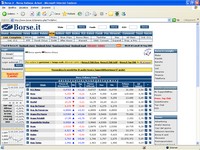
- Returning to the Excel document, we move to the second sheet and from the worksheet Menu Bar select Data > Import External Data > New Web Query…; this opens the New Web Query window. In this window, the default web page set as the initial page in the browser (e.g. Internet Explorer) appears; now we enter the URL of the site identified in the previous step into the Address box.

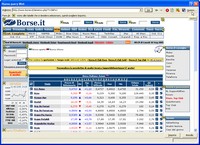
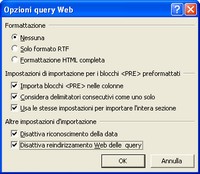
- Clicking the Go button in the window opens the chosen page, where icons representing arrows appear identifying all the tables present on that page. Before selecting the table we are interested in, click the Options button of the Toolbar to access the Web Query Options window where we can set the data import format.
- In Formatting, choose the None box; in the second section, select all the options to import data with the HTML page formatting, avoid empty cells due to consecutive HTML delimiters, and maintain the same formatting for all data. The options in the last section prevent exchanging numerical data for dates and automatic redirection to other pages.
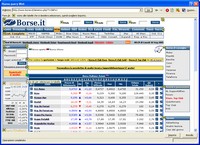
- Click the OK button and, back in the New Web Query window, hover the cursor over the various icons; this way, we can highlight the different tables on the page and find among them the one containing the data to import. Click on the icon to select the table (the icon will turn into a checkmark on a green background) and finally click the Import button.
- In the Import Data window, select the cell from which to start entering data and click the Properties button to access the External Data Range Properties window. Change the range name by typing Stock Listing A in the Name box; the Save query definition option allows saving the query as part of the worksheet and updating the data.
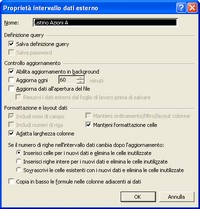
- In the Refresh Control section, several options are available; the first allows continuing to work in Excel even during updating. The Refresh every option lets you always have the latest quotes available; to achieve this, enter into the appropriate box an interval that synchronizes the update frequency with that of the selected site.
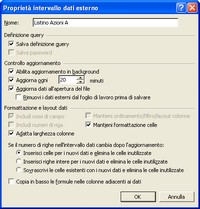
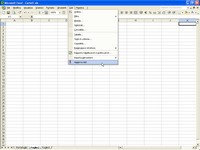
- Selecting the third option enables data refresh when opening the file; leave the last option unchecked to retain data even when closing the file. However, we can update data at any time by selecting Data > Refresh Data; in the Data Formatting and Layout section, finally, leave the default settings unchanged.
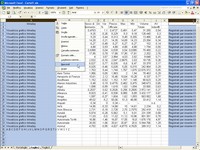
- Now click the OK buttons of the active window and the Import Data window; after a few seconds, the data selected will appear on Sheet2. Clean up the data view by hiding rows and columns that don’t interest us, without deleting them (they are necessary for the update phase); just select them and, right-click, choose Hide.
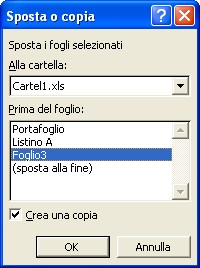
- Rename the sheet as Stock Listing A; now prepare to import data related to other companies, divided alphabetically. On the Stock Listing A sheet, place the cursor on the tab and right-click; then select Move or Copy and, in the window that appears, the Create a copy option. Choose to place it before Sheet3 and click OK.
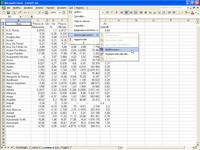
- After creating the new sheet, select Data > Import External Data > Edit Query opening the Edit Web Query page; now select the letter B to reach the second web page of the company list. Once this page is open, repeat the above operations, appropriately modifying names; with the same technique, create pages to have the complete list of companies.
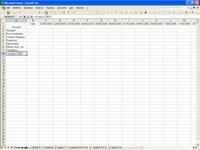
- Return to the Portfolio sheet; enter the dates on which you want to check stock performance in the first row, starting from the third column. In the first column, starting from the third row, click on a cell, type =, select one of the chosen stocks by moving to its respective sheet, and press enter. Repeat the operation for all companies of interest.
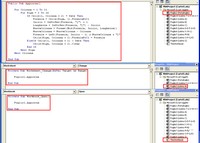
- Select Tools > Macro > Visual Basic Editor: insert the code shown in the figure in Sheet1. With this procedure, day by day (for all dates entered in the previous step) you will have the quotes you are interested in; in all other sheets insert a small procedure that calls the previous one at each change of quotes or, for the ThisWorkbook Module, at program startup.
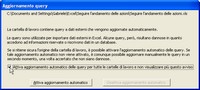
- Close the program, assigning it the name you prefer, and restart it; a window will appear where you can confirm that you want to activate automatic updating. Obviously, for the program to work correctly, you must be connected to the Internet; otherwise, during updating, error messages will appear and the last received data will be reported as updated.
Be the first to comment