
Add us to your preferred sources.

Paint Shop Pro can be effectively used to create gradient or ornate backgrounds with textures for use in, for example, PowerPoint presentations, calendars, greeting cards, and emails. The primary tool for producing these types of effects is the Material Palette, which, if not already visible, can be accessed from the View menu, then Palette, then Materials, or by pressing F6.

In the Material Palette, you can select both Patterns and Textures as material components. A pattern is an opaque image with specific colors and details that is repeated multiple times. Patterns are styles, much like solid colors or gradients. They do not use the current foreground and background colors. Typical patterns include wood grain, polka dots, diamonds, honeycomb, and weaves.
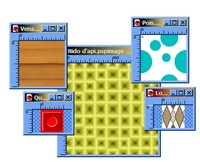
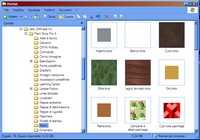
Physically, a pattern is a graphics file located in a specific folder on your computer (C:Program FilesJasc Software IncPaint Shop Pro 8Patterns). Paint Shop Pro 8.0 includes 36 default patterns. However, you can add new ones by creating them within the program itself. It’s important to remember that patterns are only available for grayscale and 16.8 million color images.
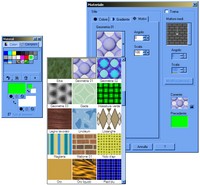
To select a background pattern (or foreground, if desired) within the application, follow these steps in the Material Palette: Click on the background (or foreground) material swatch. After the Material dialog box appears, click on the Patterns tab. In the dropdown list, click on Pattern Type and select your desired pattern.
A texture, on the other hand, gives an image the appearance of a sheet with a background design. Unlike patterns, textures can be applied along with styles (solid color, gradient, or pattern). This means you can select a pattern and a texture simultaneously. Typical textures include asphalt, concrete, gravel, brick, parchment, straw, crumpled paper, grass, and stucco.
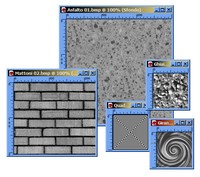
To select a texture in the program, click on a Swatch in the Material Palette. A dialog box named Material will appear. Here, check the Texture checkbox. Afterward, simply click on the Texture Type dropdown list to view the available textures and choose the one you want.
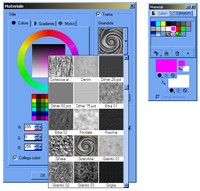
Each texture corresponds to a .bmp file located in the folder C:Program FilesJasc Software IncPaint Shop Pro 8Textures. Paint Shop Pro 8.0 has approximately 90 default textures. However, you can create and add new ones if you wish. You can also change the paths to the folders where textures are saved by clicking (in the Texture area of the Materials window) on Edit Paths.
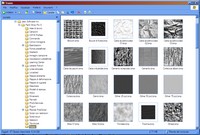
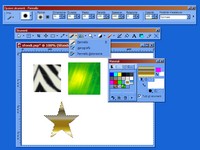
To apply both textures and patterns to an image, you can use two different tools. The first is the Brush Tool (also accessible with the B key), which can be customized with the associated palette, Tool Options – Brush, or the Flood Fill Tool (also activated with the F key). If a selection exists, these tools will fill a defined area; otherwise, they will color the entire canvas.
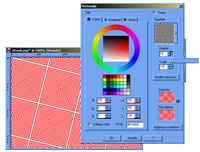
Among the most useful details for varying the structure of textures and patterns are Angle, or direction, and Scale. The angle ranges from 0 to 359 degrees and is modified by dragging the control needle within the pattern or texture. The scale is expressed as a percentage of the original texture, ranging from 10 to 250. If you specify a low (or high) value, the texture or pattern is repeated with greater (or lesser) frequency in the image.
In addition to textures and patterns, Gradients can be used to create ornamental backgrounds. These are gradual blends of two or more colors, available only for grayscale and 16.8 million color images. You can use gradients to paint, draw, or fill areas of an image, or to create color transitions. Gradients are selected from the Gradient tab in the Material dialog box.
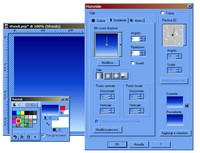
Paint Shop Pro 8.0 (in the folder C:Program FilesJasc Software IncPaint Shop Pro 8Gradients) includes 29 gradient presets. There are many customization options: alongside Angle, for adjusting inclination, and Repeat, for multiplying the effect multiple times, there is Style to change the light source and color distribution in four ways (Linear, Rectangle, Spotlight, Radial).
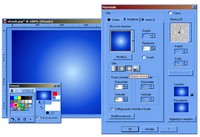
Two other modification options are Invert, which swaps the gradient colors, and the management of Center Point and Focal Point (active only if Link Center Point and Focal Point is unchecked). The center point is used with rectangular, spotlight, and radial gradients. The focal point is for rectangular and spotlight gradients. Changing the horizontal and vertical coordinates modifies the point of irradiation or the start of the gradient.
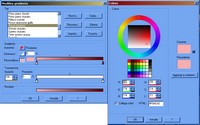
Colors can also be modified. From the Edit Gradient window (accessed by clicking the Edit button), you can choose predefined Types or change the colors in the Gradient area by working with the anchor points that control the distribution of shades, or by clicking Increase, Decrease, or Custom to apply new foreground and background colors (after clicking on the anchor points and the preview square).
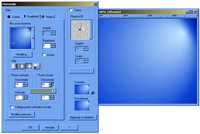
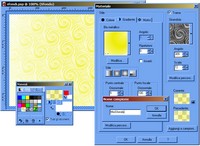
Having understood the opportunities offered by Patterns, Textures, and Gradients and learned which tools are needed to fill spaces, let’s try an example. Choose the Blue Metallic gradient and the Spotlight style. Enhance the effect created by the light points and modify the colors, shifting them towards yellow. Insert a Pinwheel texture, widen the Angle, and reduce the Scale. Here is the result.

One last tip. To avoid losing your work and to retrieve your created combinations of patterns, gradients, and textures in the future, you can save the produced swatches. Simply click on Add to Swatches in the bottom right corner of the Materials window. By assigning a name and clicking OK, a small square will be added to the Materials palette, available for future sessions of Paint Shop Pro.
Be the first to comment