

Follow FullPress on Google
Add us to your preferred sources.

When we decide to buy a new home, the sale price is not the only cost we need to consider. To know how much it will actually cost us “turnkey”, we can simplify our lives by calculating all the expenses with the help of Excel.
If we have decided to buy a house, we must know that this, unfortunately, is not the only cost we will have to face. Let’s see how much it might cost us “turnkey”, with the help of Excel.
- The first thing to decide is whether to negotiate with a company or a private individual: if we buy from a company, we have to pay VAT, but the registration tax is fixed; if we buy from a private individual, there is no VAT, but the tax is 3% of the property’s value. Let’s create and save our file and start preparing our first check. Go to cell I7 and type “Private” and in the cell below, “Company”.

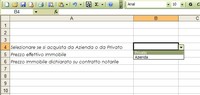
- In cell A4, type “Select if purchasing from a Company or a Private individual”. Activate the **Forms** menu by right-clicking on the **Toolbar** and drag the **Option Button** into cell B4. Right-click and select **Format Control**. In the **Input range**, select cells I7 and I8, and in **Cell link**, type B4 and press **Ok**.

- Thanks to this operation, we will later choose the option from a drop-down menu, which will help us perform cross-calculations. In cell A5, type “Actual Property Price” and in cell A6, “Property Price declared in the deed”, because, according to tax regulations, the value declared in the notary deed can be equal to the revalued cadastral income.
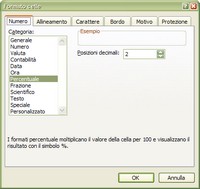
- Let’s move to cell A8 and type “Agency Commission”. In the adjacent cell, B8, right-click and select **Format Cells**. In the dialog box that opens, activate the **Number** tab, under **Category**, select **Percentage**, and set the display of the result to two decimal places.
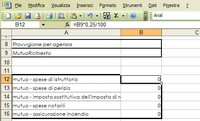
- In cell A9, type “Mortgage Requested”. Skip two rows and proceed to perform our calculations. Let’s start evaluating the cost of our mortgage. In cell A12, type “MORTGAGE – Arrangement Fees”. These are generally 0.25% of the amount granted, so let’s go to cell B12 and type the formula **=B9*0.25/100**.
- In cell A13, type “MORTGAGE – Appraisal Fees” and move to cell B13. The appraisal fees have a fixed cost of €250 if the mortgage is granted. We need to insert a formula: click on the **Insert Function** icon in the **Toolbar**, select **IF** in the **Dialog Box**, and press **Ok**.
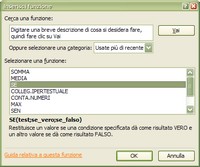
- In the next window, we are asked for a condition, called **Test**, and the actions Excel should perform if this is **True** or **False**. The condition is **B9=0** (we might not need a mortgage!): if it’s true, the appraisal fees will be zero; if it’s false, they will be 250, as shown in the figure. Press **OK**.
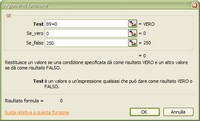
- Let’s move to cell A15 and type “MORTGAGE – Substitute registration tax.”. This has the same formula as the arrangement fees, so we can copy it from cell B12: select the cell and in the **Formula Bar**, select the function text by dragging (as shown in the figure). Press **CTRL+C**, go back to cell B14 and press **CTRL+V** in the **Formula Bar**.

- Calculating notary fees is much more complex and, let’s remember again, varies based on the tariffs applied by various professionals; these are only indicative general prices. Having specified this, notary fees are applied in brackets based on the property price, so we will use a series of IF conditions to determine the amount we will have to pay.

- In cell A15, type “MORTGAGE – Notary Fees”, activate cell B15 and press the function key. Select **IF** and press **OK**. In the test box, type **B9>=300000**; if the condition is true, type 3150; if false, the following function: **IF(B9>=200000,1900,IF(B9>=100000,1530,IF(B9>=50000,1260,IF(B9>0,900,IF(B9=0,0)))))**.
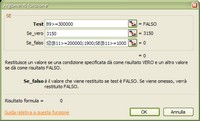
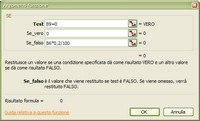
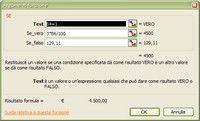
- In A16, type “MORTGAGE – Fire Insurance”. In cell B16, activate the function key, select IF, and press OK. If the requested mortgage is zero, the item will remain zero; otherwise, the amount will be calculated on 0.2% of the value declared in the notary deed, as shown in the figure. Let’s move on to contract notary fees, which are also based on amount brackets.
- These are calculated on the amount declared in the notary deed. Type “CONTRACT – Notary Fees” in cell A17 and in the adjacent cell, directly type the function **=IF(B6>=500000,3400,IF(B6>=400000,3200,IF(B6>=300000,2980,IF(B6>=200000,2600,IF(B6>=100000,2200,IF(B6>=50000,1890,IF(B6>0,1200,0)))))).**
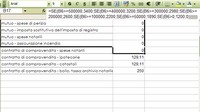
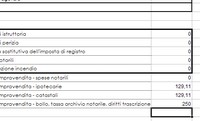
- The next three items are fixed costs. Therefore, in cell A18 and subsequent cells, type “Mortgage Fees”; “Cadastral Fees”; “Stamp Duty, Notarial Archive Tax, and Transcription”, for amounts of €129.11 for the first two items and €250.00 for the third. In cell A21, the text itself will be given by a function, as it is the result of the initial choice of whether to buy from a private individual or a company.
- Go to cell A21 and activate the **IF** function again. In the condition box, type **B4=2**; for true, enter “If purchasing Property from companies, VAT is payable”; for false, enter “If purchasing from Private individuals, VAT is not payable”. Do the same operation in cell B21, where the formula to insert for true is **B6*4/100** and in the next row, related to the registration tax, fill it in as shown in the figure.
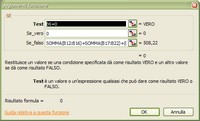
- Finally, let’s sum up the totals. Move one row down and in the cell in column A, type “Estimated TOTAL expenses for property purchase”. Select the adjacent cell and activate the **IF** function. Set the Test to **B6=0**: if the condition is true, the expenses will remain zero; if false, type the formula: SUM(B12:B16)+SUM(B17:B22)+(B8*B6/100). We are done.
Be the first to comment