
How to set up autocorrect with Word? Here’s a tutorial to learn how to use this trick that will prevent you from printing or submitting documents with errors.

Follow FullPress on Google
Add us to your preferred sources.

How to do autocorrect with Word
Word can assist us, quite effectively, in detecting all those spelling and grammatical errors that haste, distraction, or even an unfamiliar keyboard can cause, even if we are perfectly aware of our written expressive abilities.
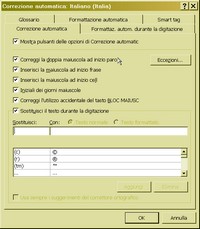
Let’s start with a look at the TOOLS / AUTOCORRECT OPTIONS.

- From the AUTOCORRECT tab, we can set the parameters for the appropriate insertion (or removal) of capital letters. Instead, in the REPLACE TEXT AS YOU TYPE section, we can update the list of the most used abbreviations and common errors, which Word will automatically replace with the correct words and symbols.
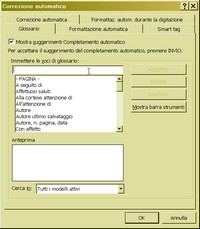
- In the GLOSSARY tab, we can modify the list of common formulas used in document creation that Word will suggest as we type. For example, by starting to type “Dear,” we will be offered the formula “Dear Sir/Madam.” Simply press ENTER to complete it. This mechanism (completion in English) is also present in many other editors.
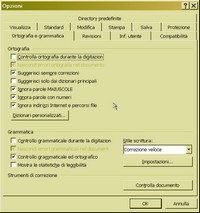
- The most convenient and immediate tool for checking spelling is certainly SPELL CHECKING AS YOU TYPE. To activate it, you need to go to the SPELLING AND GRAMMAR tab in the dialog box OPTIONS which can be accessed from the TOOLS menu. Now Word, like a strict teacher with a red pen, will underline our errors with a wavy line.
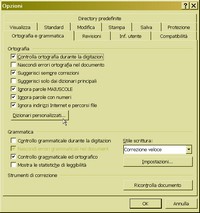
- But how does Word know a word is spelled incorrectly? By looking it up in the dictionaries it has available. During Word installation, you can choose which languages to include, but you can add them at any time; in fact, Word itself will suggest it when needed. Dictionary settings can also be changed from the same tab used in point 4.
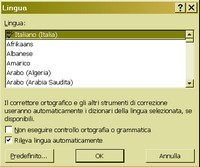
- How can you manage a document that also contains sections in other languages? You can specify the language of each part of the document by selecting it and using the TOOLS / LANGUAGE / SET LANGUAGE menu. From the same window, you can set automatic recognition: after a few words, Word will try to guess the language the paragraph is written in.
- To work in certain fields, including IT, the use of dictionaries is frequentad hoc containing technical terms. These CUSTOM DICTIONARIES can be activated, deactivated, created, and modified via the same tab as point 4. We can, for example, enter the term “online” to prevent Word from automatically replacing it with an unlikely “ondine”.
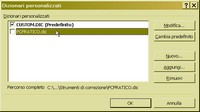
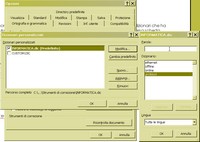
- To create a new custom dictionary, we select NEW and write the name of the .DIC file that will contain our list of words. We select it from the list and click on EDIT. We enter the terms one by one, taking care to remove any that were typed erroneously. By activating the dictionary, we will find that Word no longer underlines the newly learned words.
- Activating automatic correction while typing can make text input heavier, especially on older machines with very complex documents. However, giving up Word’s input can lead to embarrassing mistakes. You can, however, perform automatic correction at the end of the document’s creation, via TOOLS / SPELLING AND GRAMMAR CHECK.
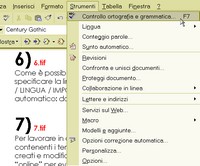
- The same result can be achieved via the F7 key or the “ABC√” button on the Standard toolbar. Word will begin scanning the document and will bring to our attention every term it deems incorrect, giving us the opportunity to ignore it, correct it (also providing suggestions), or add it to the custom dictionary of our choice.
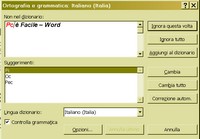
- Word even ventures into suggesting grammatical corrections, which are certainly more difficult for the software to identify. We will still have some suggestions, enriched with explanations as needed. We will be able to avoid errors in agreement and verb conjugation, outdated forms, improperly used spaces and punctuation, and obvious repetitions.
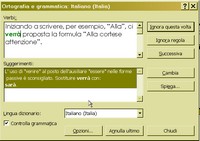
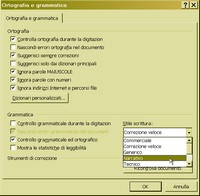
- Grammar is a rigid, yet malleable, tool that can and must adapt to the supreme dictates of style. Therefore, its rules, unbreakable in a school essay, can give way to exceptions in other contexts, such as a newspaper article or a story. Word knows this, and can adapt, when necessary, via TOOLS / OPTIONS / GRAMMAR / WRITING STYLE.
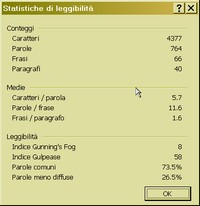
- By activating from the options tab SHOW READABILITY STATISTICS at the end of the grammar check, some data on the examined text will be displayed, including the percentages of common and less used terms, the length of words, sentences, and paragraphs, and some indices (of dubious utility but of sure interest) which can be found briefly described in Word’s help.
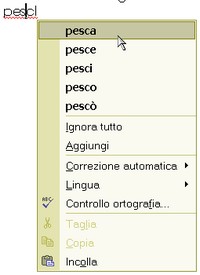
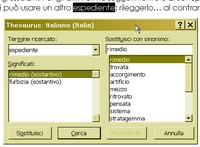
- Let’s return for a moment to inline correction. By right-clicking on a term flagged by Word, we will have a contextual menu with suggestions. But what about repetitions (which we can check with the Word Count from another article in this same issue)? We can resort to the Thesaurus, accessible from the same menu, the dictionary of synonyms.
- The correction tools offered by Word are numerous and sophisticated. They cannot replace human experience, nor can they keep up with the rapid evolution of language but, used with a grain of salt, they allow us to prevent the most obvious errors. For the rest, the obvious suggestion is to have another person review the text; otherwise, you can use another trick: read it… backwards.
Be the first to comment