
The desktop and mobile versions of Google Slides allow you to easily delete unwanted slides.

Add us to your preferred sources.

Google Slides is a fast, easy, and free tool for creating slideshows and presentations.And while it’s simple to add and edit slides, it’s not always obvious how to delete one or more slides that you no longer need from your deck.Once you learn how, however, you can delete slides with just a couple of clicks or taps using a desktop browser or the mobile app on your phone.
How to delete a slide in Google Slides on desktop
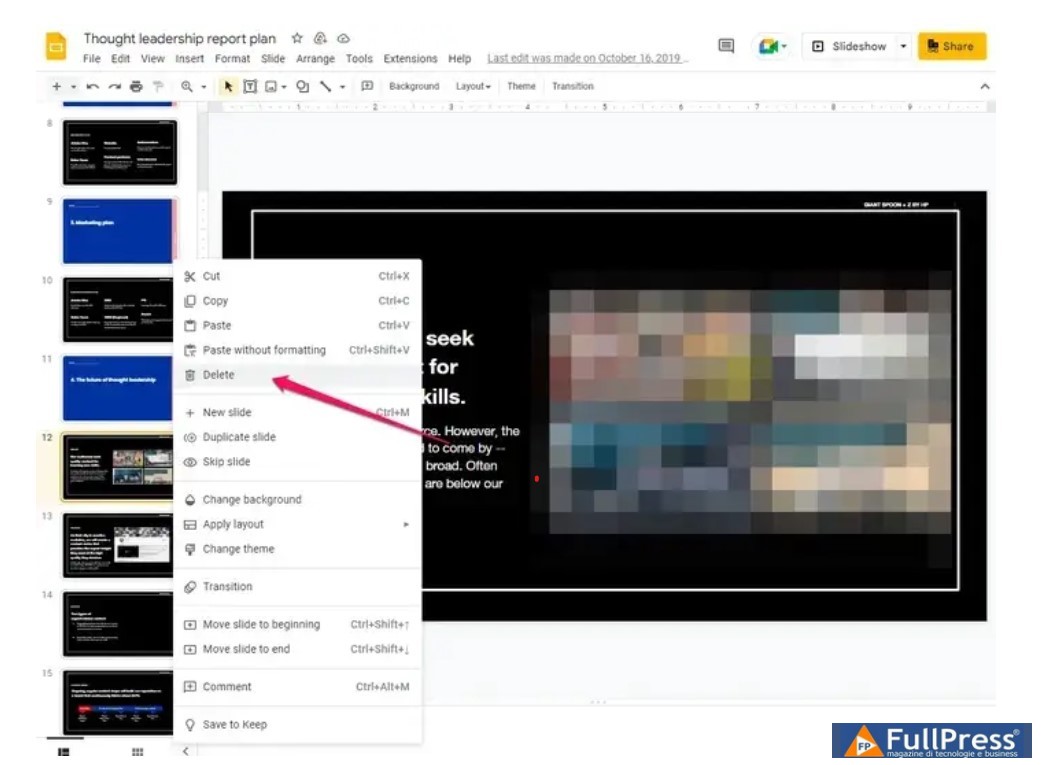
With Google Slides in a web browser and your deck open, find the slide you want to delete. Click the slide’s thumbnail in the left-hand pane, then press theDeletekey on your keyboard. Alternatively, you can right-click on the slide and chooseDeletefrom the pop-up menu. If you want to delete multiple slides at once, press and hold theShiftkey as you select the first and last slide, then delete it using the context menu or theDelete
How to delete a slide in Google Slides on Android
Open the deck you want to edit in the Google Slides app on your phone. If your slides are in a scrolling list view, double-tap so you see the slide previews at the bottom of your screen. Tap and hold the slide you want to delete until it is selected, then tap thethree-dotmenu at the top of the screen. In the pop-up menu, tapDelete.
If you want to delete multiple slides at once, tap and hold the first slide, tap any additional slides you want to delete, then tap thethree-dotmenu and chooseDelete.

How to delete a slide in Google Slides on iPhone or iPad
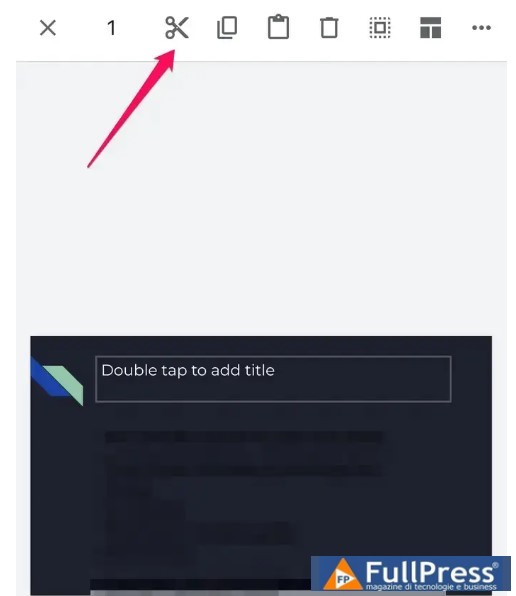
Open a presentation in the Google Slides app on your iPhone or iPad. If your slides are in a scrolling list view, double-tap so you see the slide previews at the bottom of your screen. Tap and hold the slide you want to delete until it is selected, then tap thescissorsicon in the toolbar at the top of the screen.
If you want to delete multiple slides at once, tap and hold the first slide, then tap any additional slides you want to delete. Then tap thescissorsin the toolbar.
Be the first to comment