
Creating a 3D illustration that perfectly reproduces the three-dimensional style of a dedicated program is possible: you just need to recall old notions of perspective and apply them in a 2D program. And the result can be astonishing!

Add us to your preferred sources.

Creating a 3D illustration that perfectly reproduces the three-dimensional style of a dedicated program is possible: you just need to recall old notions of perspective and apply them in a 2D program. And the result can be amazing!
Creating an illustration of this kind is much simpler than one might think. This tutorial will illustrate the fundamental principles of the technique to make it accessible even to less experienced users. Naturally, it requires certain basic knowledge of perspective and vanishing points which unfortunately, due to space constraints, cannot be covered here.

With this necessary clarification, let’s start by sketching what we want to create. Generally, we recommend designing the initial draft on paper to be free from the mechanical nature of digital tools, although a common graphics tablet can also perform this function excellently. What we see above is the initial sketch of what we will create.
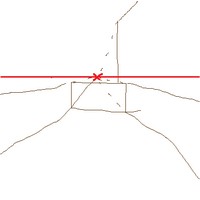
The red line crossing the image is called the horizon line and the X cutting it is the so-called Vanishing Point, that is, the point towards which all the diagonal lines of the depth of the objects in the scene converge. Once the design of the final appearance is complete, let’s get the textures we need.
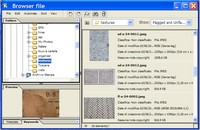
We create a new file of the size we prefer, adjusting according to the intended use (web or print). The image in our example is 400×400 pixels. We scan our sketch and import it into a new layer, so we always have the proportions we decided on in sight.
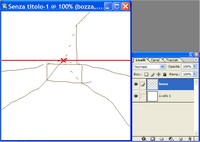
Let’s begin by creating the floor. Open the texture we have chosen and select it by pressing Ctrl+A. From the Edit menu activate Define Pattern. With this operation, we have created a “tile” with which Photoshop will fill selections (or entire layers). Create a new layer by pressing the appropriate button in the Layers palette.
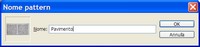
Go to Edit > Fill… A dialog box opens in which you must define the type of filling. Under Use, choose Pattern from the drop-down menu: this activates the menu below. Scroll the list, choose the pattern just created, and press Ok. As we can see, the entire layer has been filled with our texture.
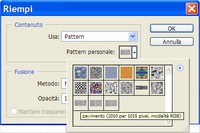
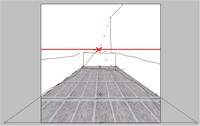
Bring the new layer below the one with the sketch; select the upper part of the floor and delete it. Press Shift+Ctrl+I to invert the selection and from the Edit > Transform menu activate Perspective. Move the three upper handles to resize the upper width to the door’s width and the lower handles to align the texture’s width.
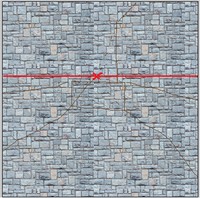
Open the texture of the low wall and perform the same selection and pattern creation operation. Create a new layer in the main image and fill it as we did previously. In this case, before making further adjustments, duplicate the layer by dragging it onto the sheet-shaped icon, since the same texture will be needed for both sides.
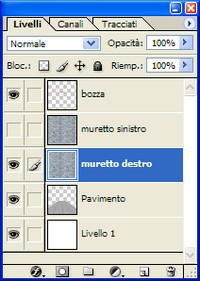
Rename the layers as Right Low Wall and Left Low Wall. Temporarily disable the visibility of the layer named Left Low Wall: click the eye-shaped icon next to the preview thumbnail in the Layers palette. The palette should now look like the figure above.
As in previous steps, select the part on the left that exceeds the length of the low wall and delete it. Also select the upper part that exceeds in height and press Delete again. At this point, there should remain a rectangle of texture at the bottom right. Click the layer while holding down Ctrl to select its transparency.
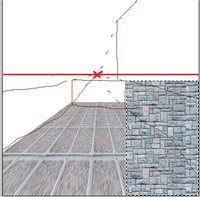
Return to Edit > Transform > Perspective. Pay attention to moving the anchor handles: the exact sequence is as shown in the figure. First, move the middle handle on the left side and bring it to the center of the door side, then the lower handle to align the height, and finally the bottom right handle to align with the floor.
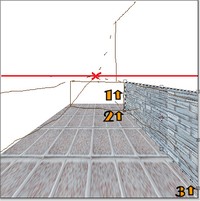
Repeat the same operation on the other side and finally add the door. In this case, it is all simpler: since the door is placed frontally, no perspective distortion is needed; all we must do is resize it to fit our needs. What we see is the result.
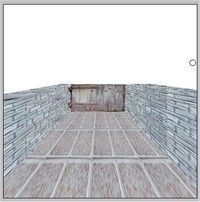
We are almost done: obtain an image of a building to place behind the low wall on the right, to which we apply the same perspective distortion. Import the image into a new layer and align the front left corner with the corresponding one in the photo. The rest of the adjustments proceed as we saw in previous cases.
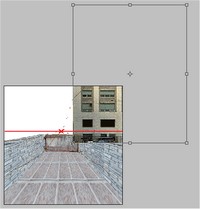
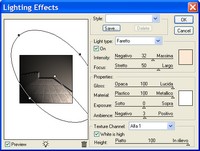
As a final touch, create a new layer, drag it below all the others, and import a photo to serve as the background. Seen like this, however, the image looks like a strange patchwork of pieces put together randomly. What we need to do is adjust the lights. Move to Filter > Render > Lighting Effects and, layer by layer, adjust the lighting of the elements.
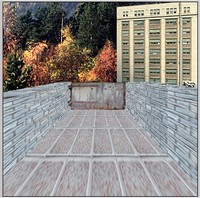
Try to understand the direction of the light in the photo used as background and adjust accordingly, trying to give, through the spotlight, the same direction while considering which areas are more in shadow. When all elements have been retouched, create a new adjustment layer with the new Photo Filter to unify the overall appearance.
Be the first to comment