

Add us to your preferred sources.

If you use Adobe Lightroom extensively, you’ll know how much of your computer’s resources the app consumes. The larger your catalog and the more edits you’ve made, the slower Lightroom becomes.
If you don’t have a powerful computer, you might find that using Lightroom starts to become problematic over time. Fortunately, you can tackle this by undertaking a number of actions.
The cache is Lightroom’s temporary memory. Every time you load previews and 1:1 adjustments, Lightroom stores that information in its cache, so it doesn’t have to render those images every time you load them.
By default, Lightroom’s cache is set to a meager 1GB. As you can imagine, this gets used up quickly when navigating and editing large groups of photos, especially if you’re using RAW files instead of JPEGs.
A larger cache, therefore, is always preferable. You can increase the cache folder size by going to Lightroom > Classic Preferences > Performance. Then, under Camera Raw Cache Settings, enter the maximum cache folder size you wish to have.
You can close the window once you’ve done this; the changes will take effect immediately.

Lightroom’s performance will always be limited by the speed of the hard drive that your Lightroom folders are stored on. The faster the drive, the quicker Lightroom will be able to render those photos.
So, even if you have to store all your actual photos on a slower drive, your Lightroom catalog and cache folder can be stored on something much faster. This usually means a high-performance solid-state drive (SSD), instead of a slower disk-based HDD.
If you store everything internally, you should always opt to use an SSD over slower disk-based drives. Most newer computers now come with SSDs as standard. But if you’re storing your Lightroom folders externally, ensure that your external hard drive uses a USB 3.0, Thunderbolt, or eSATA connection.
To move your cache folder location to a faster drive, head to Lightroom Classic > Preferences > File Handling. Like the last tip, you’ll need to go to Camera Raw Cache Settings. Press Choose to select your preferred stored cache folder location.
As any hard drive gets close to capacity, it will start to slow down. This is why, for Lightroom users, it’s always recommended to have at least 20% of your hard drive free. More than 50% is even better. This is especially true if your Lightroom catalog is stored on the same drive as your operating system. The last thing you want is to slow down the entire system.
If your drive is filling up fast, buying a new hard drive will be a good investment that will help to keep Lightroom running more smoothly. This is a better option than defragmenting the drive in the hopes that it will run faster (which is pretty irrelevant for SSDs anyway).
The amount of data stored on each of your photos in Lightroom is truly impressive. But it’s also a massive task for Lightroom to keep all of this information organized for quick access, especially if you have a library of over 10,000 images.
Lightroom offers a tool to optimize your catalog. Your catalog is basically a single database that holds all of the metadata and adjustment instructions for all of your photos. As you take more actions, that database starts to become less efficient and larger than it needs to be.
To optimize your catalog, click File > Optimize Catalog > Optimize.

Many professional photographers will open a new catalog for each gig that they shoot (File > New Catalog), so a large catalog is rarely an issue. But for amateur photographers, keeping all of their photos in one catalog might seem more organized. However, there’s a performance tradeoff to be had.
As catalogs grow (especially if you’re shooting in RAW), there is a noticeable slowdown in Lightroom. The application works harder to keep everything organized. If your catalog falls into this category, it’s probably worth splitting it into two or more separate catalogs.
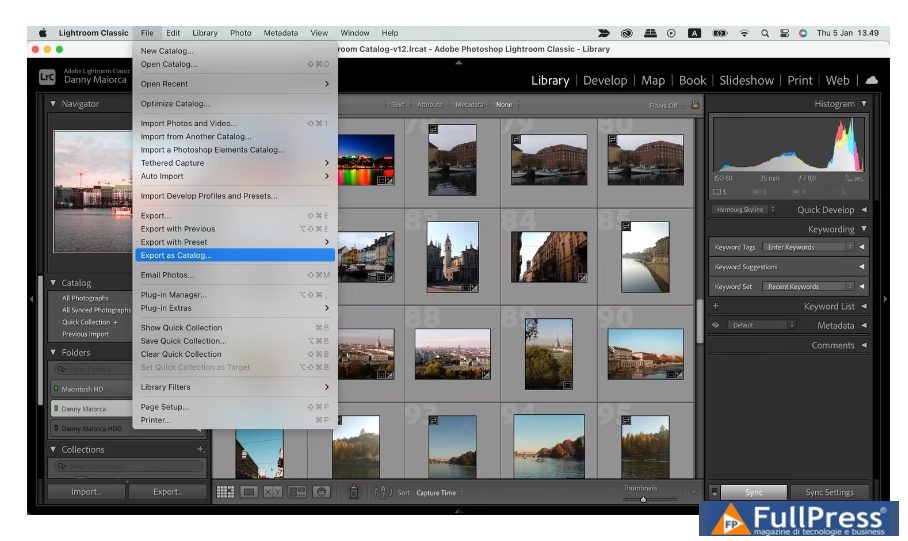
Before you do this, always back up your existing catalog. Then, from Lightroom, select all of the images that you want to move to a new catalog and click File > Export as Catalog.
Choose the location for your new catalog and select the required options from the dialog box. If you wish to move the original files to the new location, select the Export Negative Files checkbox. If you want to leave the originals where they are, deselect the Export Negative Files checkbox. When you’re ready, click Export Catalog.
All of the adjustments and metadata stored for the selected photos will be moved to the new catalog. You can then remove those photos from your original catalog (not from disk).
If Lightroom is still running slow even when it has easy access to 1:1 previews, you might want to try using lower-resolution smart previews.
Basically, when Lightroom doesn’t have access to your original photos, it uses smart previews. This allows you to edit your photos without dragging an external hard drive around with you. Smart previews are generally around 90% smaller (around 1MB each on average) than the original RAW files (which are often between 10MB and 50MB each). They will load much faster.
If you’re using a smaller machine, such as the MacBook Air M2, relying on smart previews instead of 1:1 previews while you’re editing could save you a lot of time. Yes, the resolution isn’t as high (limited to around 2500px on the longest edge), but on a smaller screen, do you really need much more?
Also, when you reconnect your original RAW files to Lightroom, any edits that you’ve made to the smart previews will be applied automatically, and you’ll be able to export those adjustments as usual.
To create smart previews when importing photos, select the Create Smart Previews checkbox.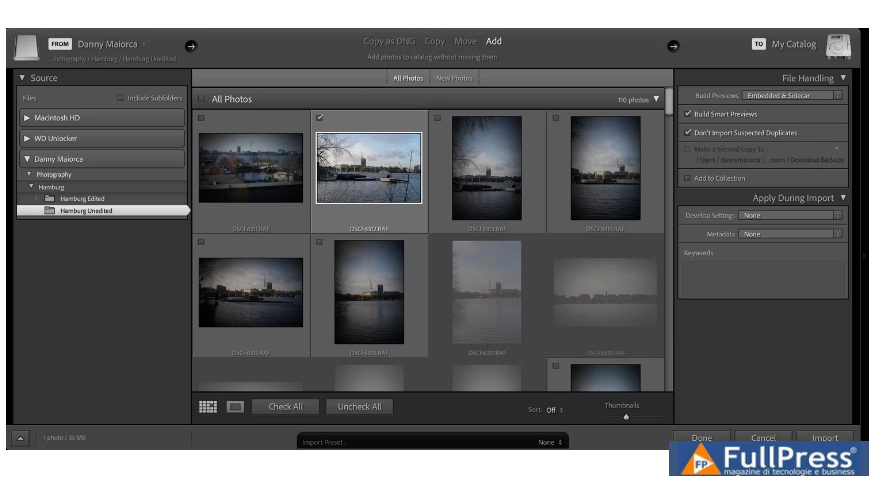
If you want to create smart previews for photos already in your library, go to the Library module, select the necessary folders/photos, and click Library > Previews > Build Smart Previews. Building these previews might take a little time at first, but it’ll save you time later.

Once you’ve built your smart previews, you’ll need to force Lightroom to use them instead of 1:1 previews. You can see which preview Lightroom is using by looking below the histogram in the Develop module.

If your original photos are stored on a different drive than your Lightroom catalog, simply disconnect the drive that your photos are stored on. So long as Lightroom still has access to your catalog, it will automatically start working with smart previews. If your photos are stored internally, you’ll need to trick Lightroom by renaming the folder they are stored in, so Lightroom can no longer locate them.
Once all of your editing is complete, reconnect your external drive, or rename your photo folder back to its original name. Lightroom will then be able to locate all of your photos and apply edits as normal.
Lightroom renders standard previews in many different modules, such as the filmstrip and grid view. If these previews are larger than they need to be, this will slow everything down.
To change the default preview size, go to Lightroom Classic > Preferences > File Handling. Expand the JPEG Preview dropdown to choose the optimal size.

How to Improve Lightroom Speed?
Despite Lightroom’s slowness, many photographers find it hard to imagine life without the app. Naturally, any steps that can be taken to streamline your workflow and help improve how Lightroom performs should be taken advantage of.
But with Lightroom being so feature-rich, there are probably many more ways to keep your catalog running smoothly.
Source Makeuseof
Pubblicato in Guides & Tutorials
Be the first to comment