

Add us to your preferred sources.

Want to add a sort button in Excel? Sorting is an easy way to display the highest or lowest values in your data. This is such a common task in data analysis that having a button to provide a one-click method for sorting your data will save you time!
Add a Sort Button With Filters
When you have a tabular dataset in Excel, you can add toggles to your column headers that allow you to sort and filter your data. This is the easiest way to add a sort button to your data that is always visible and available for use.

Here is how you can add sort and filter options to your data.
- Select the data you want to sort.
- Go to the Data tab.
- Click the Filter command.
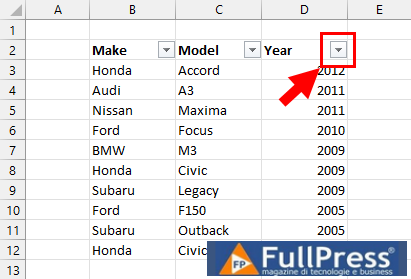
This will add filters to your data and you can see them on the right side of every column header in your data.

When you click on one of these, they will reveal the various sort and filter options. These will allow you to quickly sort any field in ascending or descending order with the Sort Smallest to Largest or Sort Largest to Smallest commands.
Add a Sort Button With a Keyboard Shortcut
Sort and filter toggles can also be added to your data selection with a simple shortcut combination. Select your data range, and press the keyboard shortcut Ctrl + Shift + L to add the sort and filter toggles. This is an easy way to add or remove filters as the shortcut acts as a toggle to turn them on or off.
Add a Sort Button With VBA
VBA is a coding language that is available in the desktop version of Excel and will allow you to create custom solutions. You can create a VBA macro to sort your data and assign it to a button on your sheet.
You can then style your button however you like and add custom text to the button. This is a great option when others will be using the workbook as it helps to make sorting very intuitive for the user. Here is how you can create your own sort button with VBA.
Press the keyboard shortcut Alt + F11 to open the Visual Basic editor.

Navigate to the Insert menu of the Visual Basic editor, and select the Module option. This creates a code module where you can add your VBA code that will sort your data.
Sub ToggleSortOrder()
Dim ascCell As Boolean
ascCell = ActiveSheet.Range("ascCell").Value2

If ascCell = True Then
    ascCell = False
    With ActiveWorkbook.Worksheets("Data").ListObjects("Cars").Sort
        .SortFields.Clear
        .SortFields.Add2 Key:=Range("Cars[[#All],[Year]]"), Order:=xlAscending
        .Apply
    End With
Else
    ascCell = True
    With ActiveWorkbook.Worksheets("Data").ListObjects("Cars").Sort
        .SortFields.Clear
        .SortFields.Add2 Key:=Range("Cars[[#All],[Year]]"), Order:=xlDescending
        .Apply
    End With
End If

ActiveSheet.Range("ascCell").Value2 = ascCell ' Update the named range
End Sub
Add the VBA code above to your new module. The ToggleSortOrder() subroutine allows you to toggle sorting on an Excel table named Cars on a sheet named Data between ascending and descending order of the Year column.
Start by setting a variable called ascCell to the value from a named range on your sheet called ascCell. This is a True or False value and is used to keep track of the current sort order, and allows the routine to toggle between ascending and descending order.

You can create the named range on your sheet by selecting a cell, then typing ascCell into the Name Box and pressing Enter.
An If... Then... Else statement then sorts the data based on the value from ascCell. Each part of the If statement also rewrites to the named range ascCell to keep track of the sort order.
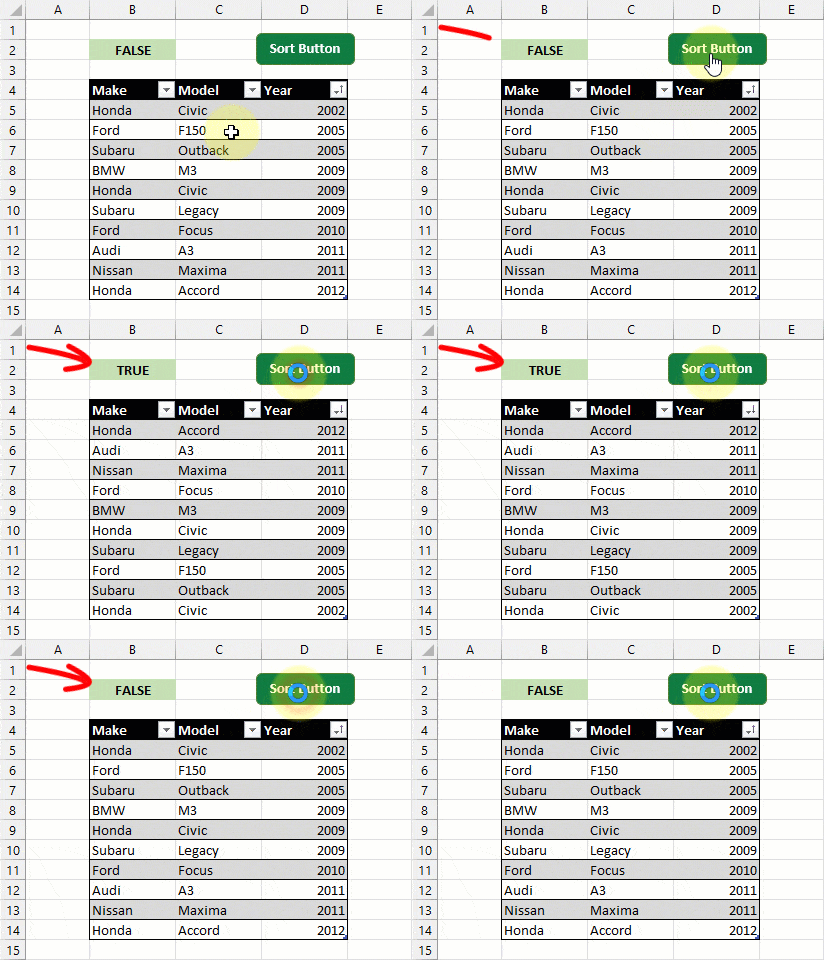
You can now create a button on your sheet and set the button to run your VBA code when it is clicked.
Add a Sort Button With Office Scripts
Office Scripts is a programming language that is available for desktop and web versions of Excel with an M365 business plan. Office Scripts will be the way to go if you need a custom sort button that works in both the desktop and web versions of Excel.

Navigate to the Automate tab, and click on the New Script option to open the Code Editor and create a new script.

function main(workbook: ExcelScript.Workbook) {
    let cars = workbook.getTable("Cars");
    let ascCell = workbook.getActiveWorksheet().getRange("ascCell").getValue();
    let ascValue: boolean;

    if (ascCell === true) {
        ascValue = false;
        workbook.getActiveWorksheet().getRange("ascCell").setValue(false);
    } else {
        ascValue = true;
        workbook.getActiveWorksheet().getRange("ascCell").setValue(true);
    };

    cars.getSort().apply([{ key: 2, ascending: ascValue }], false);
}
Add the code above to the code editor and press the Save Script button.
This code can be used to sort a table in an Excel workbook. It starts by declaring two variables: cars and ascCell. The cars variable stores the workbook’s table, while the ascCell variable stores a value that indicates whether the sort should be in ascending (true) or descending (false) order.
It checks the value of the named range cell ascCell to determine which sort order should be used. This cell is used to keep track of the previously applied sort option.
The code will update the ascCell range each time it is run. This allows the code to function as a toggle between ascending and descending sort.
If ascCell is set to true, the data is sorted in ascending order, otherwise it is sorted in descending order.
The ascCell value is used to set the ascValue variable that determines the sort.
Finally, it calls the .getSort() method with two parameters. This ensures that the desired sort operation is performed on the table.
key: 2represents which column should be sorted. This uses a zero-based index, so 2 will sort the third column.ascending: ascValueis a boolean value to establish whether you want an ascending (true) or descending (false) sort.
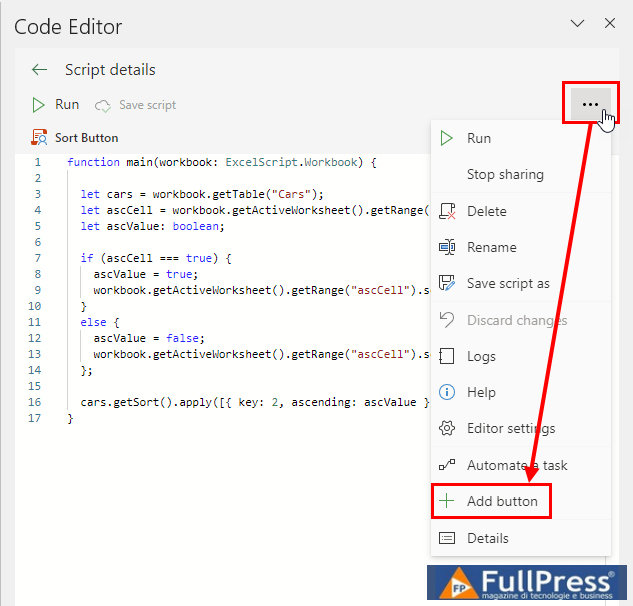
This code can be run from the Run button in the Code editor, but you can also create a button on your sheet that will run the code. Click the Ellipsis icon in the top right area of the Code editor, and select the Add button option from the menu. This creates a button that floats above the grid and will run your Office Script every time it is pressed.

Add a Sort Button With a Slicer
Excel has a very useful Slicer option for filtering table data. This is an interactive filter object that floats above the grid and allows a user to filter a given field in the data by clicking on the slicer items.
Unfortunately, there is no equivalent object for sorting data. But you can create a data sorting tool using slicers and the SORTBY dynamic array function.
This way you can set up slicers with ascending and descending options that can be selected and get your desired sort. Here is how you can set it up.
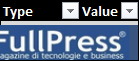
You will first need to set up a second table that will eventually connect to a slicer. This will have 2 columns, one will contain the labels to display in the slicer and the other will contain the input arguments required for the SORTBY function. In the previous table, the Type column contains the labels and the Value column contains the corresponding SORTBY arguments.
The table will have two rows because the SORTBY function has two possible inputs. It can sort in ascending ( 1) or descending ( -1) order.
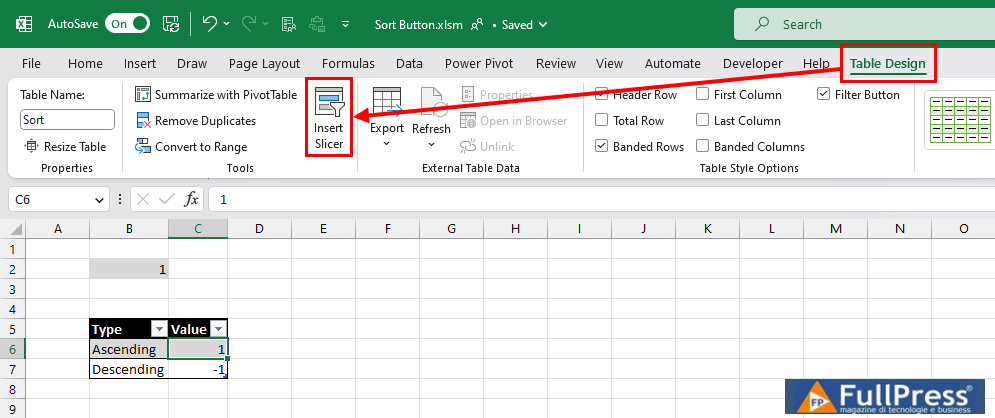
You can now create a slicer for this secondary table. Select the table, navigate to the Table Design tab, and click on the Insert Slicer command.
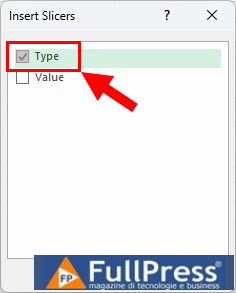
This will bring up the Insert Slicer menu where you can select the field to base the slicer on. Select the Type column that contains the Ascending and Descending labels and press the OK button to create the slicer.
This will create a slicer where you can select either Ascending or Descending. This will filter the table to show only the selected option. You will now need a way to get the visible value from your filtered table. This can be achieved with the SUBTOTAL function. It will allow you to aggregate a column based on the visible rows.
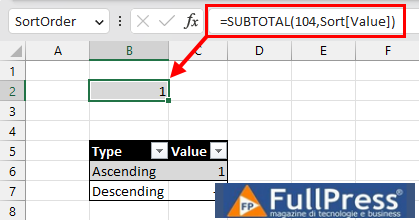
=SUBTOTAL(104, Sort[Value])
The previous SUBTOTAL formula will get the maximum value based on the visible rows in the Value column. It returns 1 when the table is unfiltered or filtered to Ascending, and it returns -1 when the table is filtered to Descending.

=SORTBY(Cars, Cars[Year], SUBTOTAL(104, Sort[Value]))
This SUBTOTAL result can then be used in the SORTBY function to change the sort using slicers! The previous formula will return the Cars table sorted by the Year column based on the SUBTOTAL results.
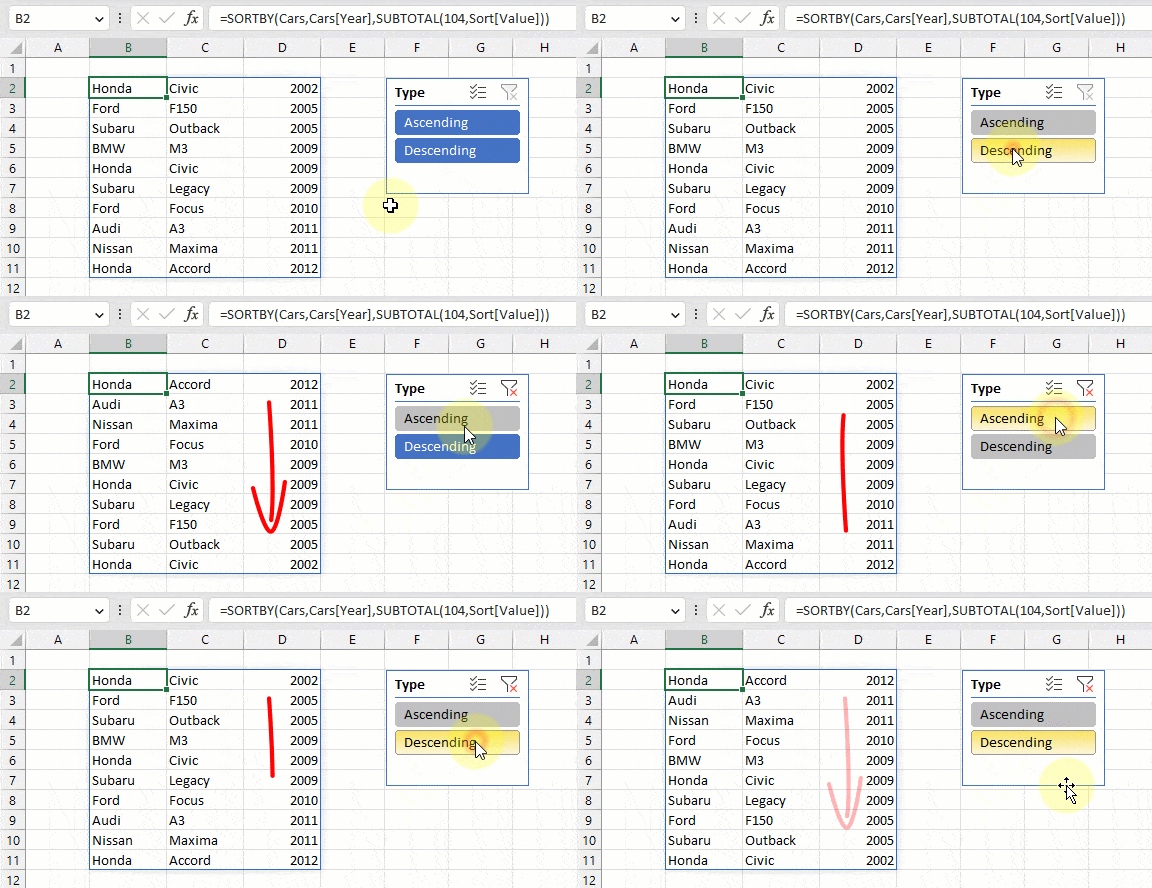
You can now sort your data with a slicer!
Conclusions
Sorting data is a fundamental part of any data analysis, and having a button for it will make the process much easier. Filter toggles offer a built-in button for every column header in your data, and these can be added quickly with a shortcut. But the sorting options they provide are not obvious.
Another way to insert a sort button for your data is with VBA or Office Scripts. Both will allow you to create code to sort your data, and these can be added to a button placed on your sheet.
Author John MacDougall
Pubblicato in Excel
Be the first to comment